Comment définir la disponibilité ?
Vous pouvez mettre à jour la disponibilité de n'importe quelle annonce directement depuis le Calendrier de Disponibilité.
1. Sélectionnez la plage de dates
Cliquez sur n'importe quel jour dans la grille du calendrier.
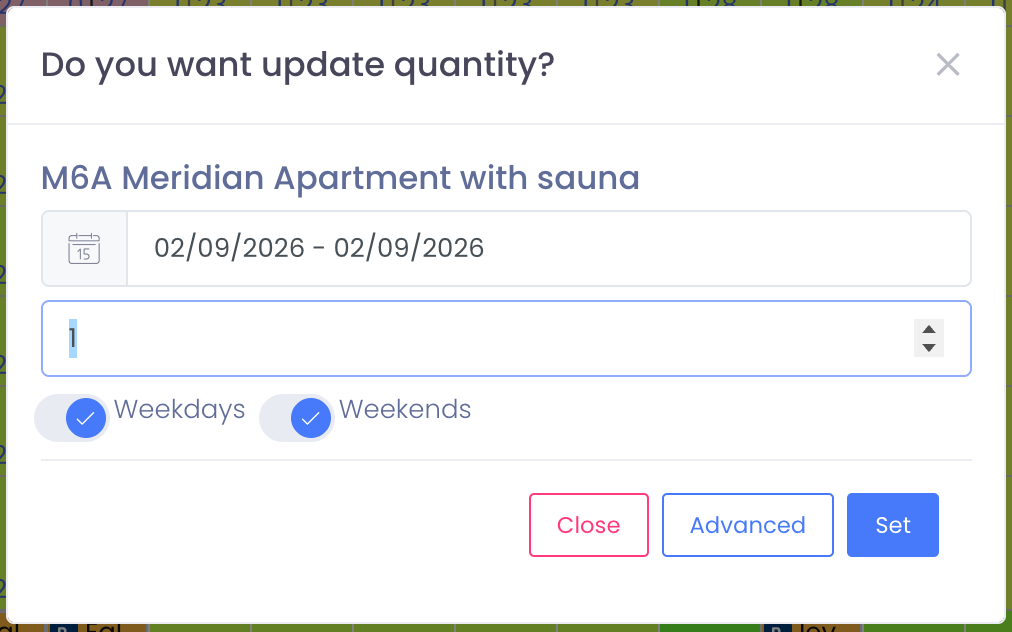
Une fenêtre s'ouvrira affichant le nom de l'annonce et la plage de dates sélectionnée.
À partir de là, vous pouvez définir la nouvelle quantité de disponibilité.
2. Entrez la quantité de disponibilité
Dans la fenêtre contextuelle :
- Choisissez la plage de dates
- Entrez le nombre d'unités disponibles pour cette annonce
- Choisissez si le changement s'applique aux : Jours de la semaine, Week-ends ou les deux
- Cliquez sur Définir pour enregistrer
Cela mettra instantanément à jour votre calendrier et synchronisera la disponibilité sur tous les canaux connectés.
3. Modification en masse de la disponibilité
Si vous devez modifier la disponibilité pour plusieurs annonces ou de longues plages de dates, cliquez sur Avancé.
L'éditeur d'Inventaire en Masse vous permet de :
- Sélectionner plusieurs types de chambres à la fois
- Choisir les jours de la semaine/week-ends ou des jours spécifiques de la semaine
- Définir la quantité, fermer la disponibilité ou ouvrir la disponibilité
- Appliquer les modifications à une longue plage de dates en un seul clic
C'est idéal pour les ajustements saisonniers, les périodes de rénovation ou la mise à jour de nombreux appartements à la fois.
Remarques
- Si vous avez plusieurs chambres du même type, vous pouvez définir la disponibilité sur 1, 2, 3, 4... La disponibilité atteint “complet” uniquement lorsque la valeur devient 0.
- Pour vendre des lits au lieu de chambres complètes, utilisez la même méthode — définissez simplement le nombre de lits disponibles dans ce type de chambre.
- Vous pouvez également utiliser des annonces Virtuelles pour suivre le placement des clients ou pour gérer l'inventaire non réservable.
- Plus de détails : (votre lien interne reste le même)
Conseils
- Pour des ajustements rapides → cliquez sur la cellule du jour
- Pour les modifications à long terme ou sur plusieurs annonces → utilisez Avancé (Modification en Masse)
- Les mises à jour de disponibilité sont synchronisées en temps réel avec Booking.com, Airbnb et tous les canaux connectés