Come Controllare la Disponibilità di Tutti gli Annunci
Il calendario di disponibilità di NOBEDS ti offre una panoramica completa di tutti i tuoi annunci in un unico posto. Ecco come usarlo efficacemente.
Vai al Calendario Disponibilità
Puoi accedere alla vista principale della disponibilità in due modi:
1. Dalla Dashboard:
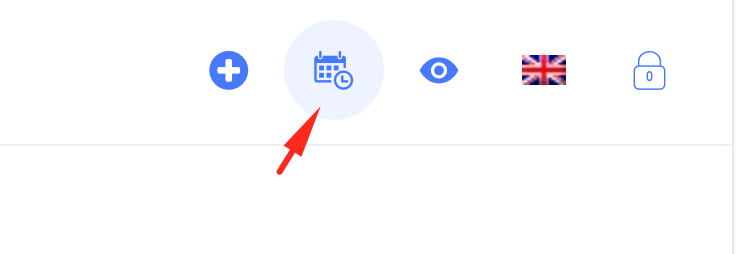
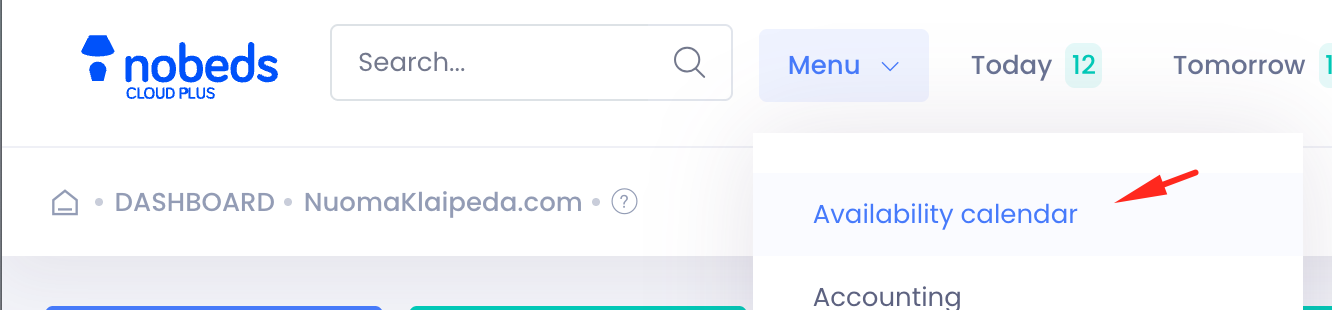
Clicca sul pulsante 'Disponibilità' nel menu principale.
2. Link Diretto:
Puoi anche aggiungere ai preferiti il link diretto al calendario di disponibilità per un accesso rapido.
Comprendere la Vista Calendario
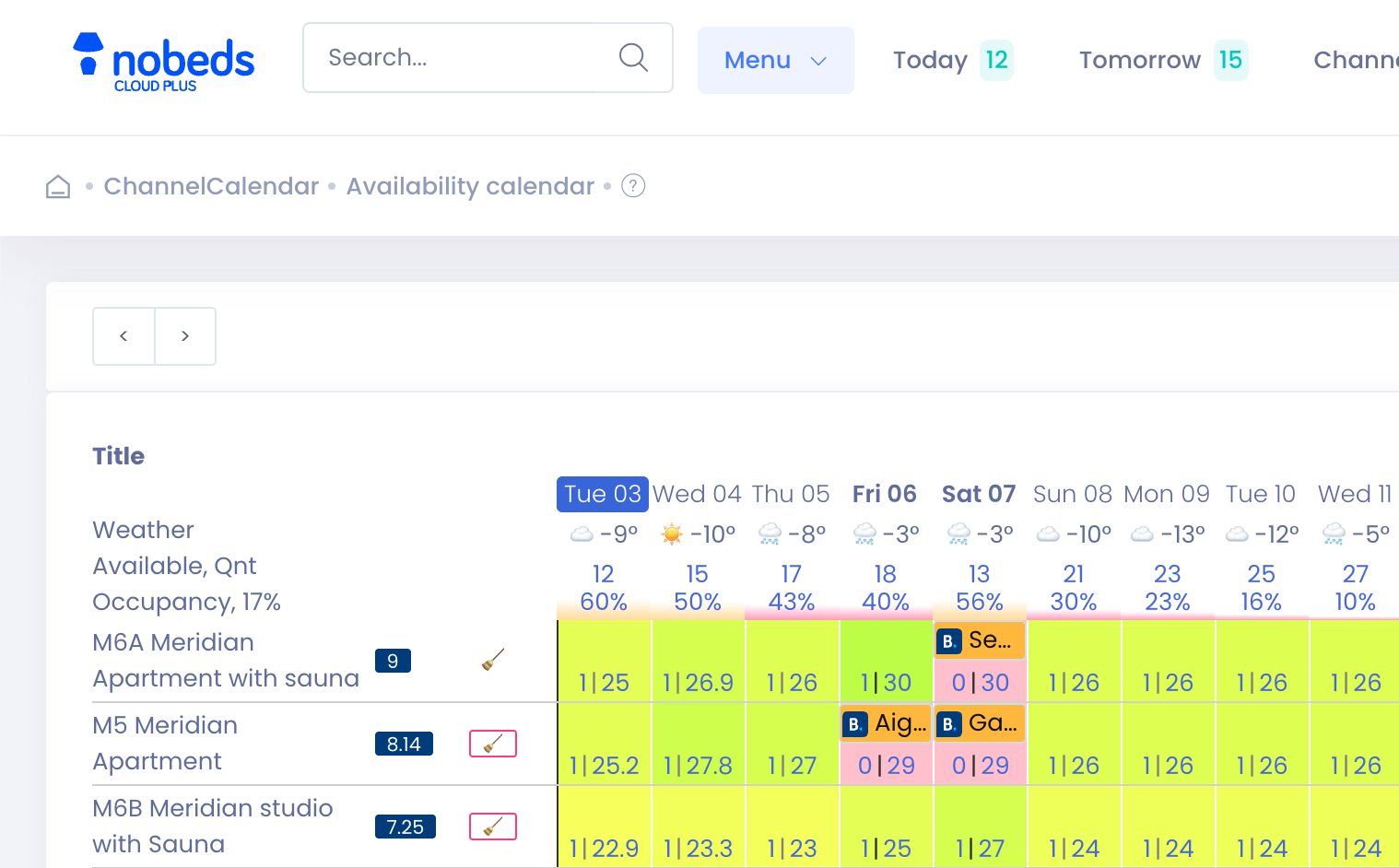
Il calendario è una griglia che mostra tutti i tuoi annunci (camere, appartamenti, ecc.) sull'asse verticale e le date sull'asse orizzontale.
Codici Colore:
- Verde: Disponibile
- Rosso: Prenotato
- check_availability.step2.colors.item3
Puoi scorrere orizzontalmente per vedere le date future e verticalmente se hai molti annunci.
Controllare la Disponibilità per una Data Specifica
Per controllare la disponibilità per una data specifica, trova semplicemente la data sull'asse orizzontale e guarda la colonna corrispondente. Puoi vedere:
- Quali annunci sono disponibili (verde)
- Quali sono prenotati (rosso)
- Il nome dell'ospite che ha prenotato l'annuncio
- Il canale di prenotazione (es. Booking.com, Airbnb, ecc.)
- Il prezzo della prenotazione
- Il numero di ospiti
- Lo stato della prenotazione (es. confermata, in attesa, ecc.)
- Eventuali note che hai aggiunto alla prenotazione
- Le date di check-in e check-out
- L'ID della prenotazione
Puoi anche cliccare su qualsiasi prenotazione per aprire i dettagli della prenotazione e vedere maggiori informazioni.
Note Aggiuntive
- Il calendario viene aggiornato in tempo reale man mano che vengono effettuate nuove prenotazioni.
- Puoi anche usare il calendario per creare nuove prenotazioni cliccando su una data disponibile.
- Il calendario è completamente reattivo e può essere utilizzato su qualsiasi dispositivo.
- Puoi filtrare il calendario per tipo di annuncio, stato e altri criteri.
Consigli Pro
- Usa la barra di ricerca per trovare rapidamente una prenotazione o un ospite specifico.
- Usa la funzione 'Vai a Data' per navigare rapidamente a una data specifica.
- Personalizza la vista del calendario per mostrare o nascondere determinate informazioni.