How to Check All Listings Availability
The NOBEDS availability calendar gives you a complete overview of all your listings in one place. Here’s how to use it effectively.
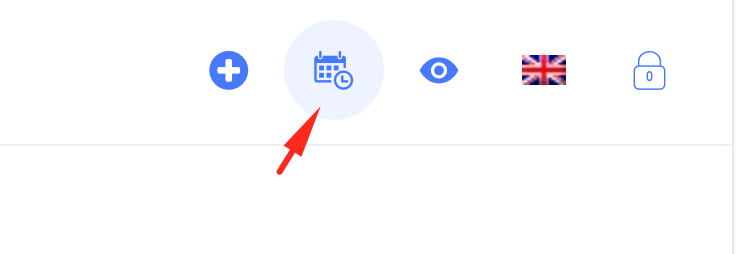
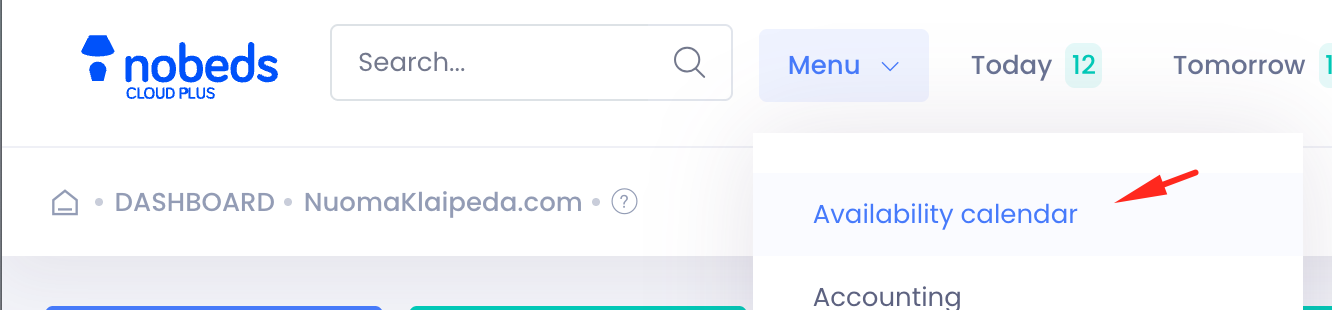
Navigate to the Availability Calendar
You can access the main availability view in two ways:
1. From the Dashboard:
Click on the 'Availability' button in the main menu.
2. Direct Link:
You can also bookmark the direct link to the availability calendar for quick access.
Understanding the Calendar View
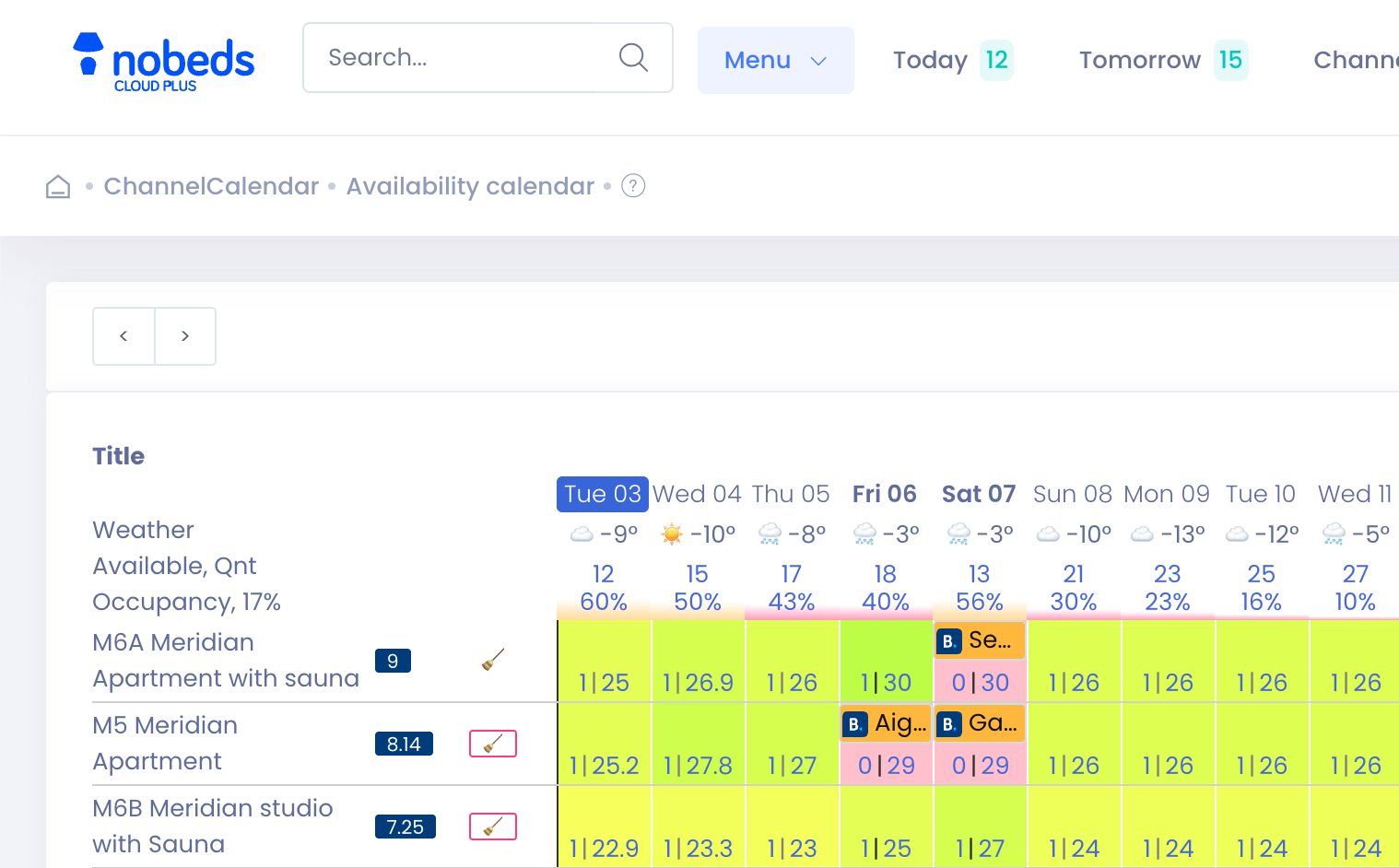
The calendar is a grid that shows all your listings (rooms, apartments, etc.) on the vertical axis and the dates on the horizontal axis.
Color Codes:
- Green: Available
- Red: Booked
- check_availability.step2.colors.item3
You can scroll horizontally to see future dates and vertically if you have many listings.
Checking Availability for a Specific Date
To check availability for a specific date, simply find the date in the horizontal axis and look at the corresponding column. You can see:
- Which listings are available (green)
- Which are booked (red)
- The name of the guest who booked the listing
- The booking channel (e.g., Booking.com, Airbnb, etc.)
- The booking price
- The number of guests
- The booking status (e.g., confirmed, pending, etc.)
- Any notes you have added to the booking
- The check-in and check-out dates
- The booking ID
You can also click on any booking to open the booking details and see more information.
Additional Notes
- The calendar is updated in real-time as new bookings are made.
- You can also use the calendar to create new bookings by clicking on an available date.
- The calendar is fully responsive and can be used on any device.
- You can filter the calendar by listing type, status, and other criteria.
Pro Tips
- Use the search bar to quickly find a specific booking or guest.
- Use the 'Jump to Date' feature to quickly navigate to a specific date.
- Customize the calendar view to show or hide certain information.