How to Check Overbookings
In very rare situations a listing can become overbooked. This usually happens when two bookings arrive at nearly the same time or when availability was changed manually.
Common reasons
- A manager changed availability manually
- Two different channels sent bookings at almost the same moment
- Availability was reduced after a booking already existed
Information you will need
Before investigating the issue, collect the following details:
- The exact date that was overbooked
- The Listing ID (from Settings → Listings)
- The Order ID of the booking (from Bookings → Booking info)
Check the Calendar Logs
Go to: Logs → Calendar
Select the relevant dates and check the availability change history for the listing.
In the log you will see a detailed timeline of events such as:
- Availability changes
- Price updates
- Manual edits by managers
- New bookings received from channels
Look for a sequence like this:
- Availability quantity was changed manually
- A new booking arrived immediately after
This helps identify what caused the overbooking.
Example
In the logs you may see entries like:
• calendar SET quantity: 1 – availability was changed
• Booking quantity -1 – a new booking arrived
• reservation id / order id – booking reference
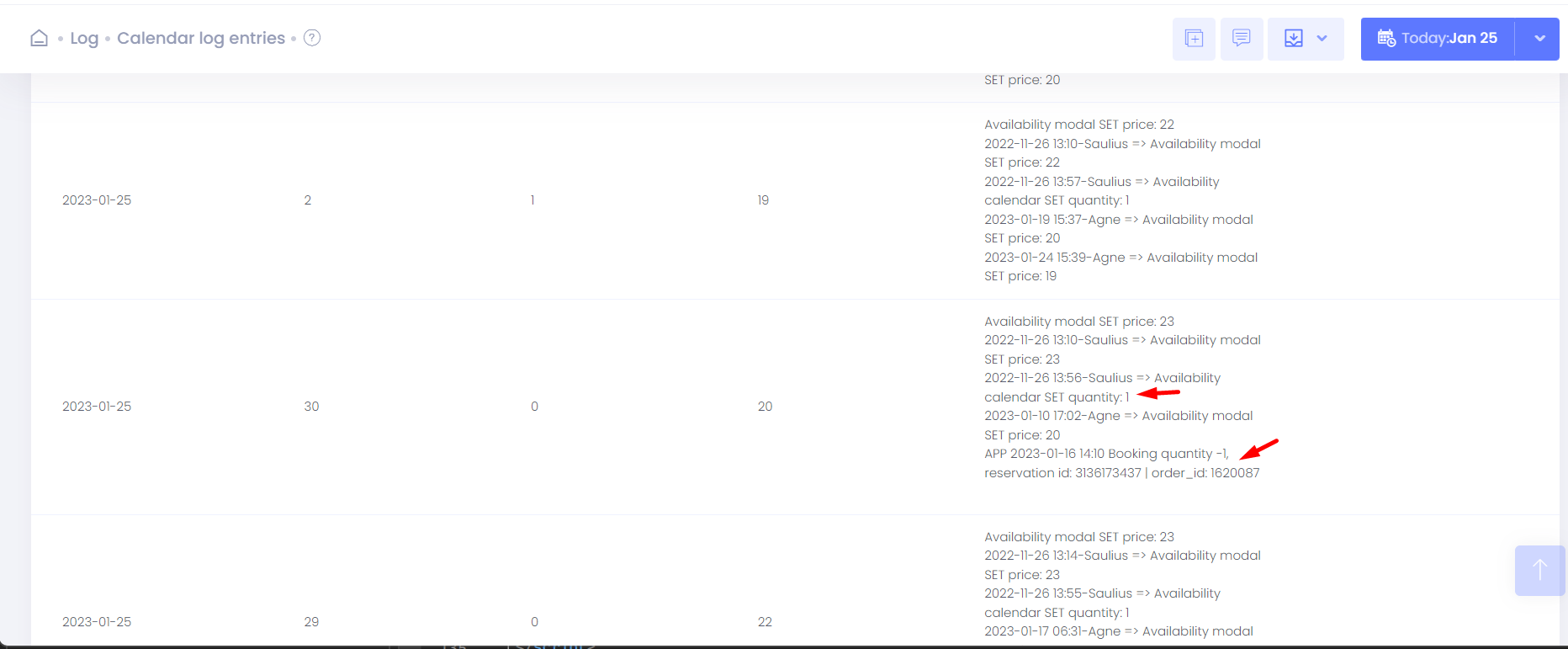
This shows exactly when availability changed and when the booking was created.
Need help?
If you find a suspicious log or cannot determine the cause, please contact us:
support@nobeds.comInclude:
- Listing ID
- Date of overbooking
- Order ID
This will help us investigate the issue quickly.