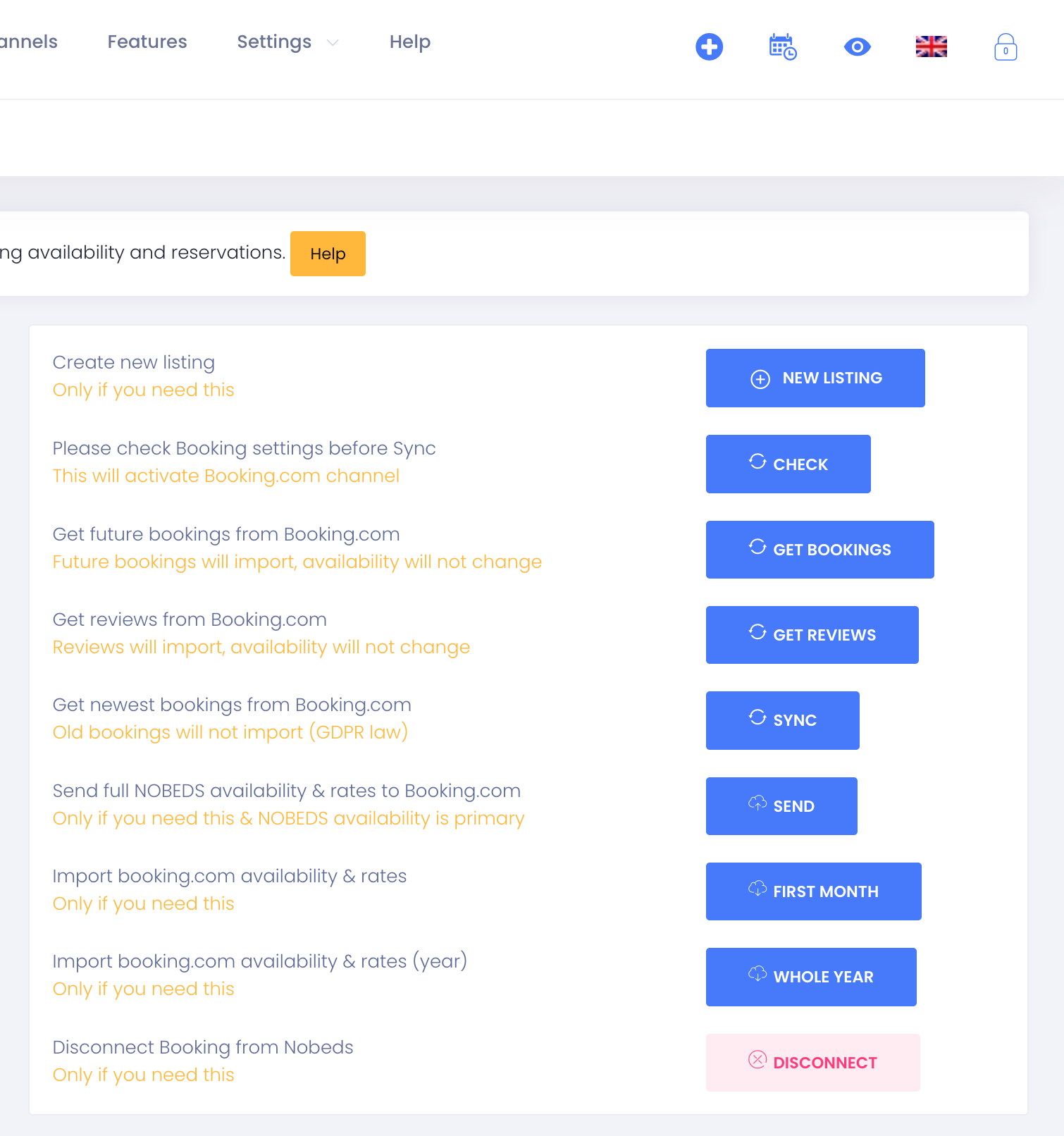
How to Connect Booking.com to NOBEDS Channel Manager
Follow these instructions to enable automatic synchronization of availability, rates, and bookings.
1Step 1 — Login to Booking.com
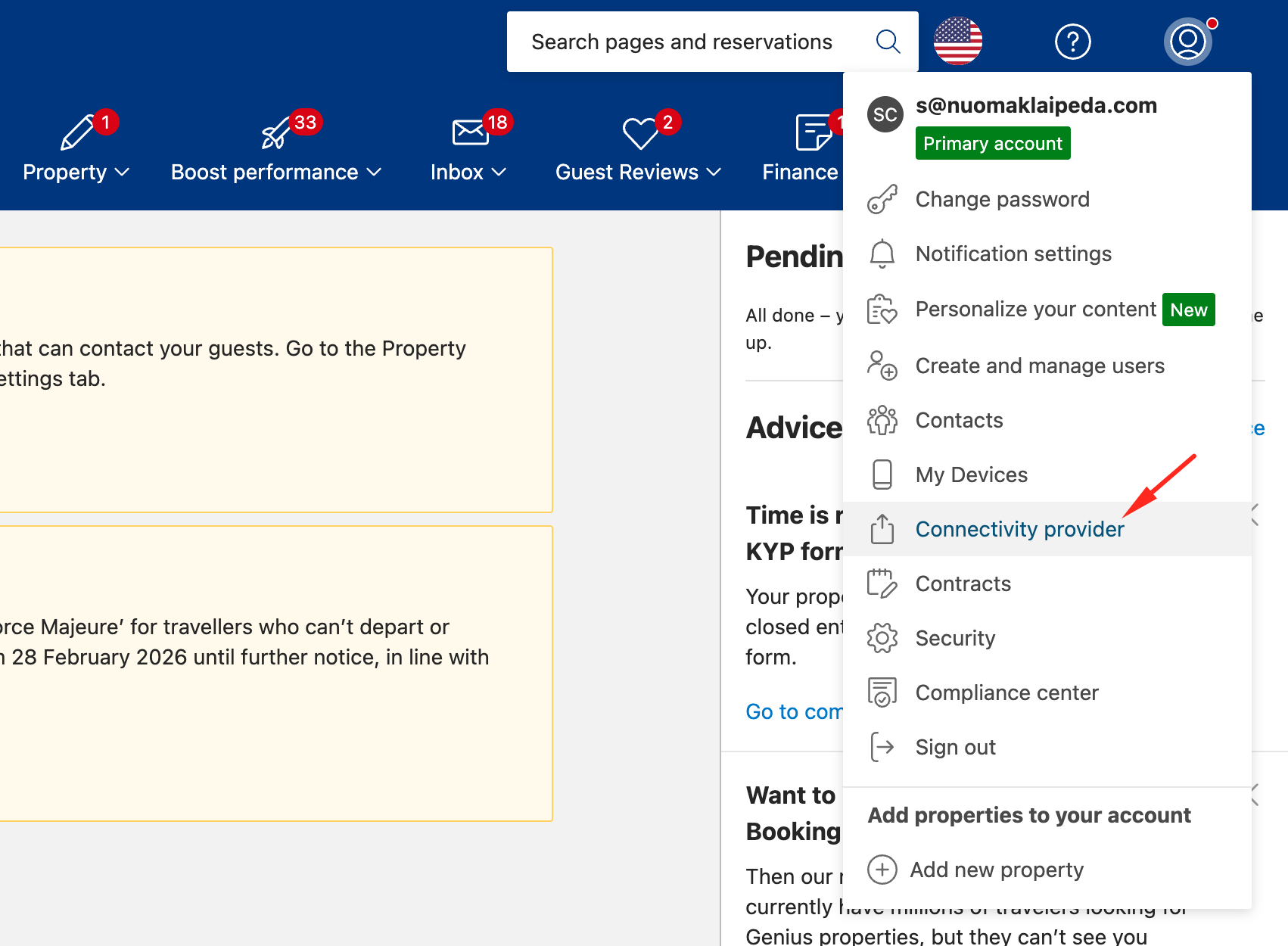
Log in to your Booking.com Extranet. Click on the "Account" icon in the top-right corner and select "Connectivity provider".
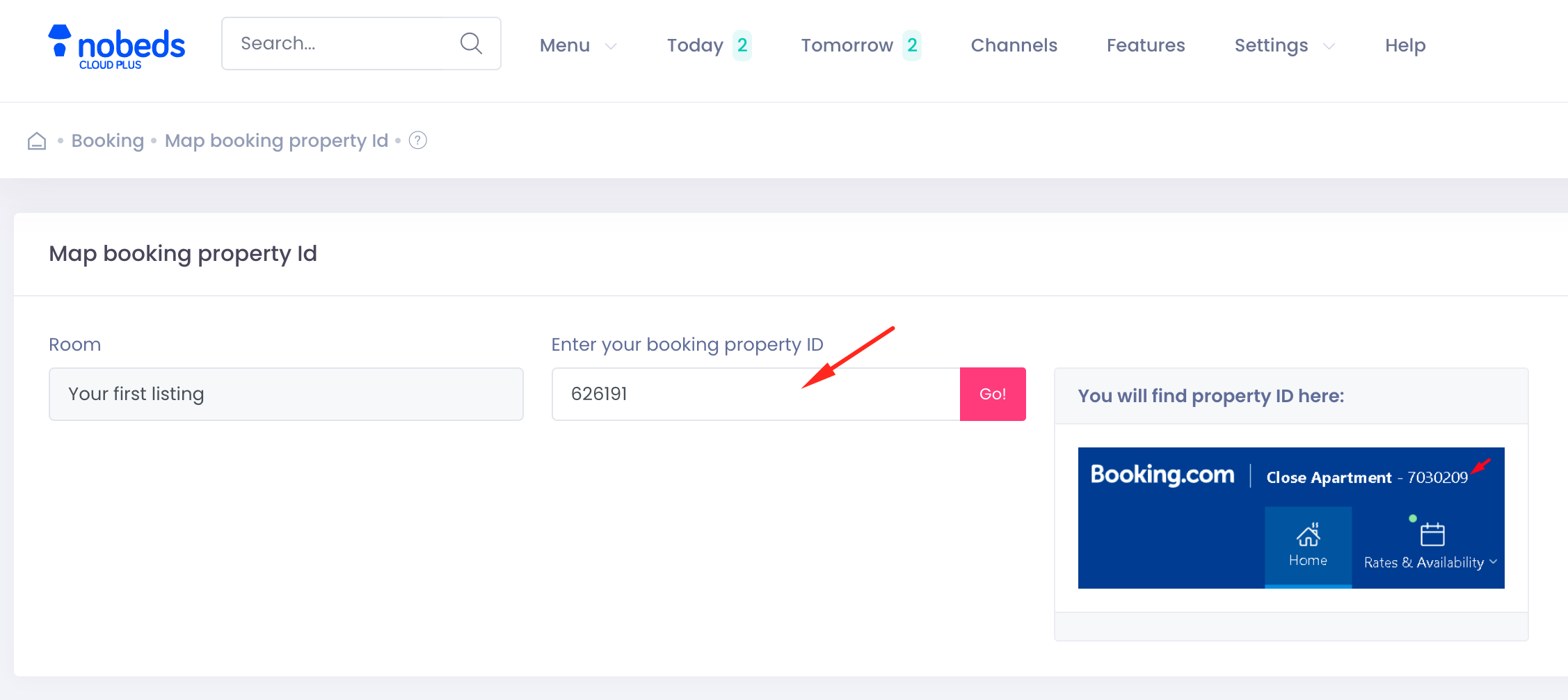
Your Hotel ID can be found in the top-left corner of your Booking.com Extranet.
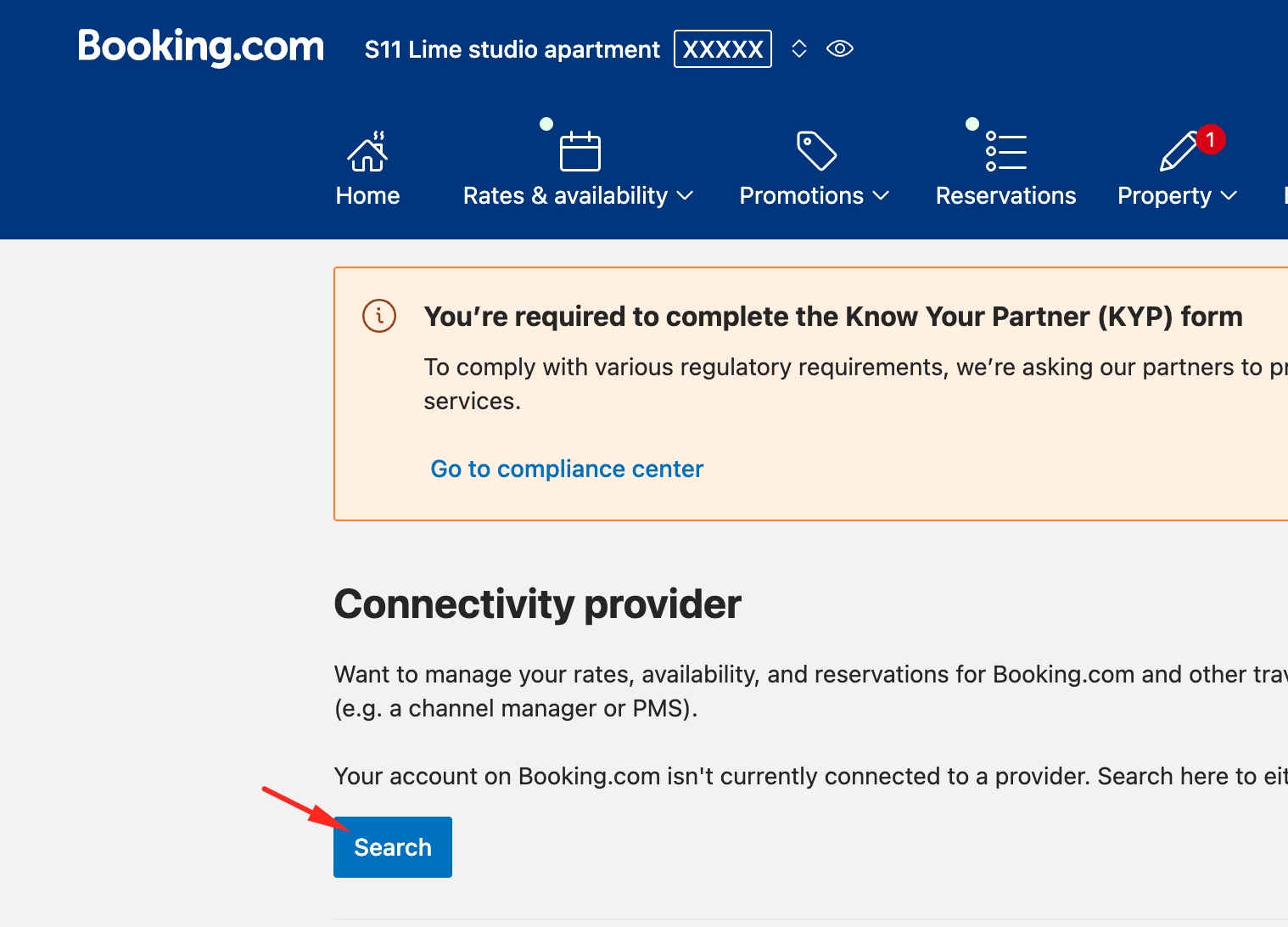
2Step 2 — Search for NOBEDS
Click on "Search" and type "NOBEDS" in the search bar. Select NOBEDS from the list of available providers.
The initial synchronization may take up to 30 minutes to populate all data across platforms.
3Step 3 — Connection Features
Select all available connection features (Reservations, Rates & Availability) and click "Next".
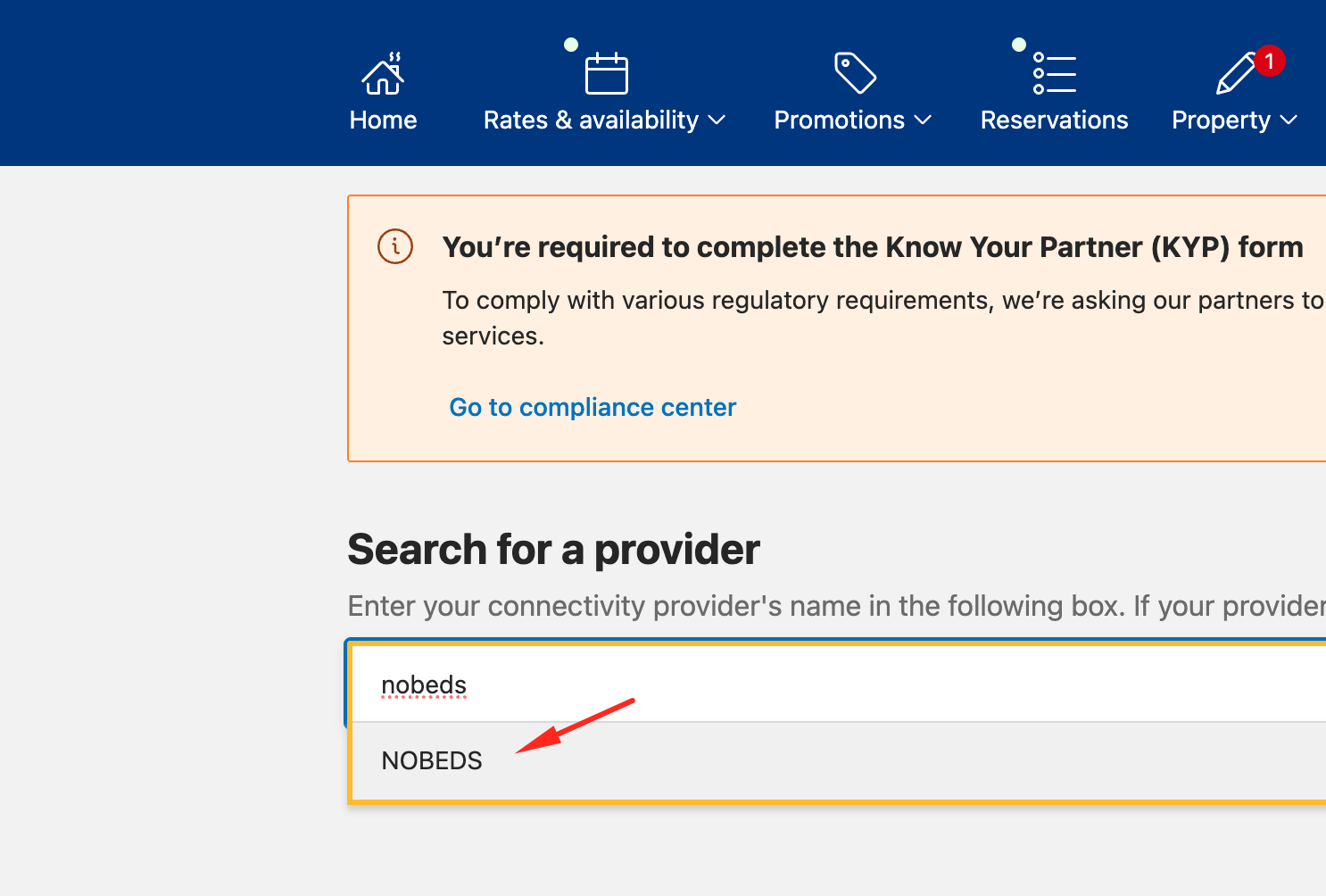
Search Query
4Step 4 — Accept Agreement
Read and accept the XML Service Agreement. Click "Accept" to proceed with the connection request.
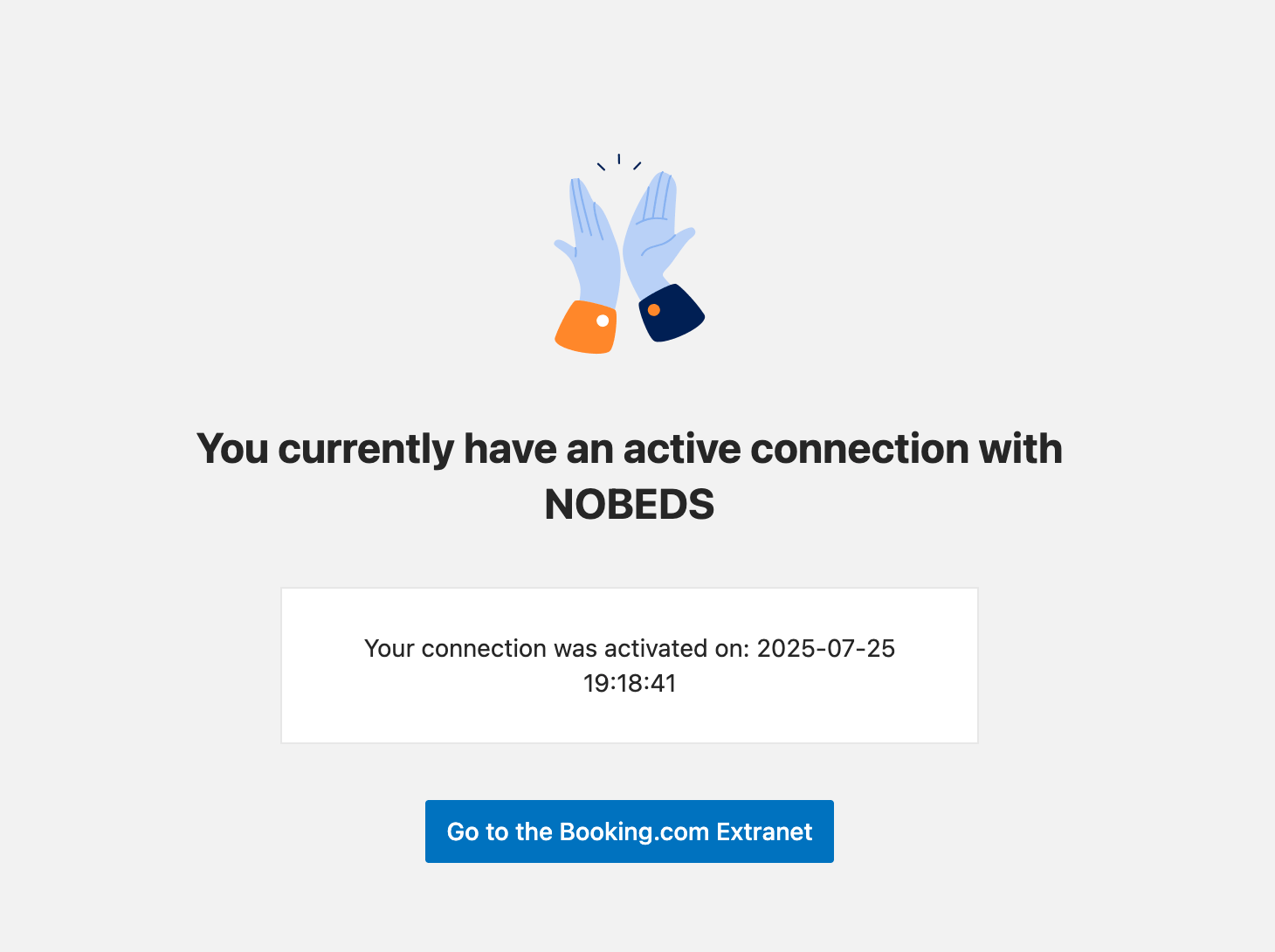
5Step 5 — Complete Connection in NOBEDS
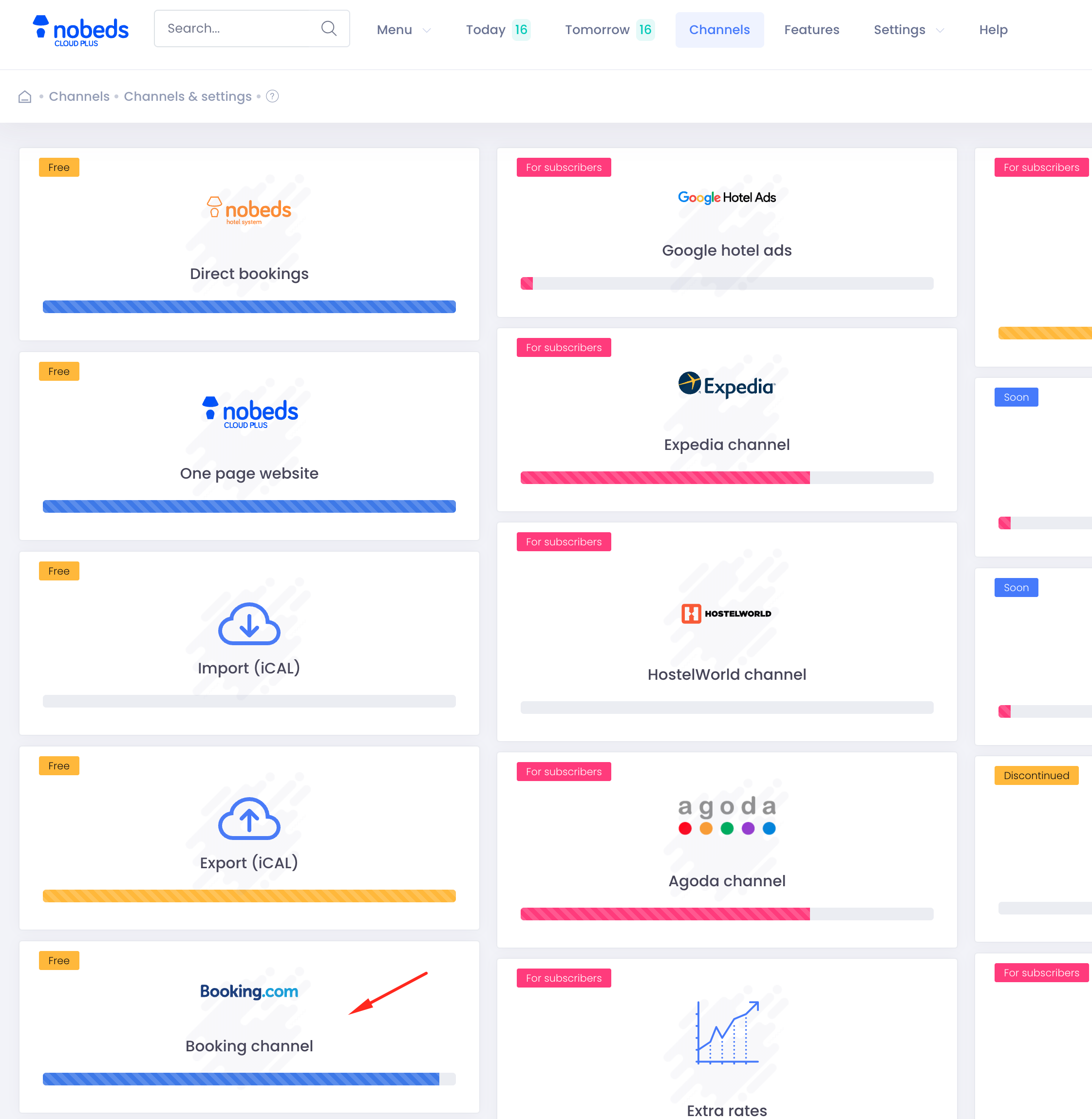
Now, log in to your NOBEDS account, go to Settings > Channels > Booking.com, and enter your Booking.com Hotel ID to finalize the sync.
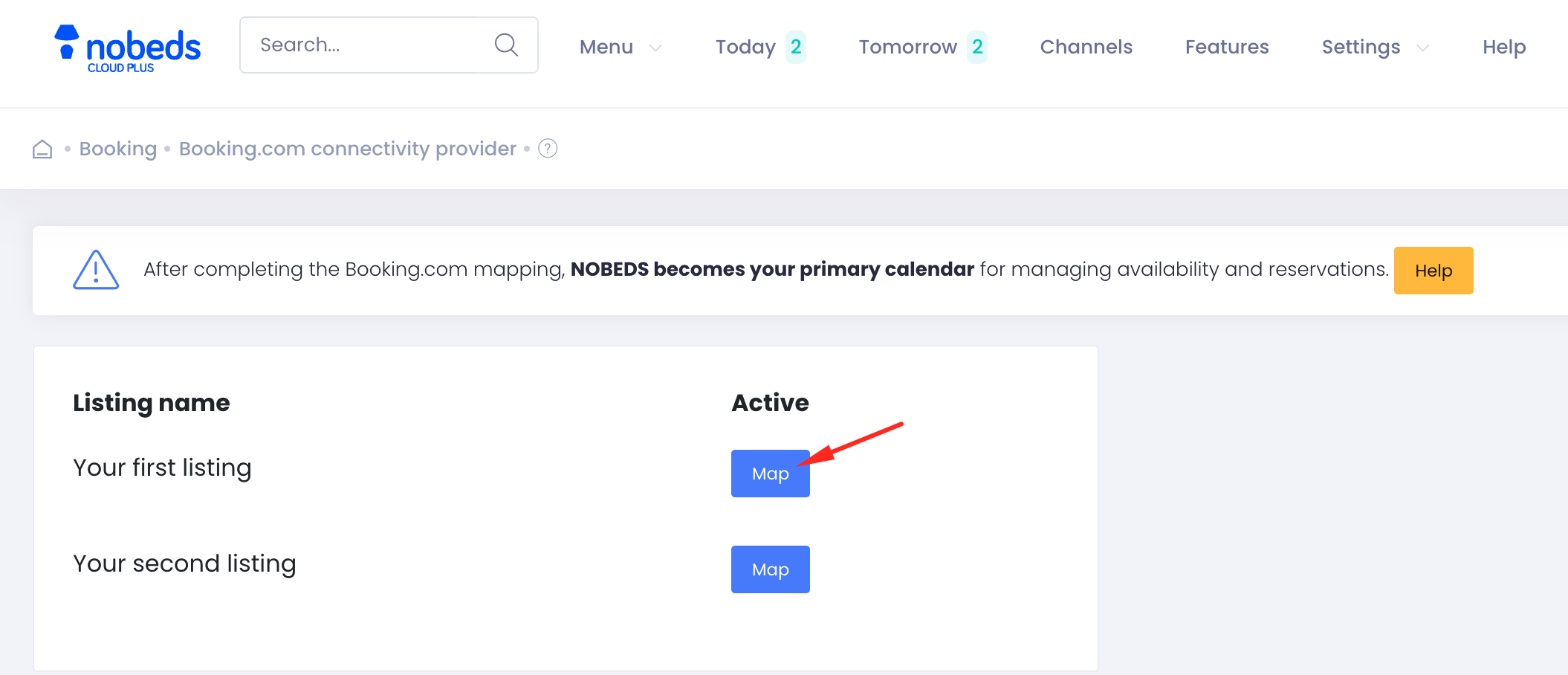
6Step 6 — Room Mapping
Inside the Booking.com channel settings in NOBEDS, click on "Mapping". Match each room type from Booking.com with the corresponding room type in NOBEDS.
7Step 7 — Save and Activate
Once the mapping is complete, click "Save". The system will then start the initial synchronization process.
Property ID Reference
8324419
This ID is always visible in the top banner of your Booking.com dashboard.
Verify that the room names match exactly between both platforms.
8Step 8 — Verify Synchronization
Go to your Availability Calendar in NOBEDS and verify that the availability and rates reflect those on Booking.com.
Ensure your connection complies with local data protection regulations.
Note: It might take a few moments for the first sync to complete across all rooms.