How to Connect Trip.com to NOBEDS Channel Manager
Follow these instructions to connect your Trip.com account, map room types, and enable real-time calendar and rate synchronization.
Step 1 — Retrieve Hotel ID from Trip.com Extranet
Log in to your Trip.com Partner / Extranet portal. Locate your unique Trip.com Hotel ID from the top header or property settings.
- Sign in to the Trip.com hotel extranet.
- Copy your official Hotel ID number.
- Ensure your listings on Trip.com are active and open for sales.
Step 2 — Access Trip.com in NOBEDS
Log in to your NOBEDS dashboard and navigate to the Trip.com channel page:
- Go to Channels menu or open the direct link https://nobeds.app/Trip/Index.
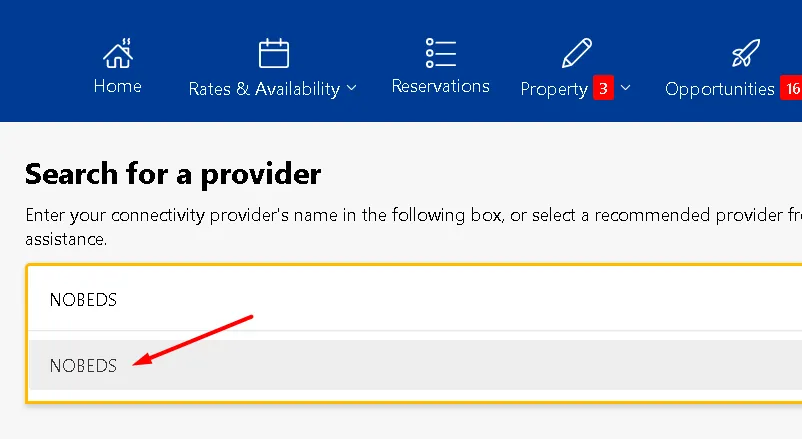
- Enter your Trip.com Hotel ID into the property configuration field.
Step 3 — Room Mapping & Rate Sync
Map each room in NOBEDS to the corresponding Trip.com room type and rate plan:
- Click the green Map button next to each room listing.
- Select the corresponding Trip.com Room ID and Rate Plan from the dropdown list.
- Click Sync to trigger instant calendar and booking synchronization across all channels.
Important Notes
- Instant 2-Way Synchronization: Once mapped, reservations made on Trip.com automatically block dates in NOBEDS and across Booking.com and Airbnb.
- Unmapping: If you ever need to disconnect a room, click the Clear Mapping (trash icon) button in the Trip.com table.
Helpful Tips
- Always double-check currency consistency between Trip.com and your NOBEDS General Settings.
- Ensure all room occupant counts (max guests) match between Trip.com and NOBEDS listings.
FAQ
How long does the initial Trip.com sync take?
Initial calendar synchronization takes less than 1 to 2 minutes once rooms are mapped.
Does NOBEDS charge extra commissions for Trip.com bookings?
No, NOBEDS charges 0% commission on all connected channels and direct bookings.
Can I connect multiple properties to Trip.com?
Yes, you can manage multiple properties with dedicated Hotel IDs under your NOBEDS account.