How to Create a New Booking
There are two ways to create a booking in NOBEDS: from the top menu or directly from the calendar.
Option 1 – From the Top Menu
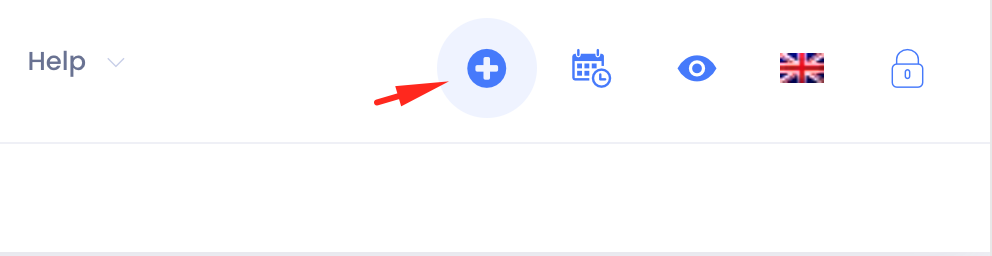
- Click the “+” (Quick actions) button in the top bar.
- Select New booking from the dropdown menu.
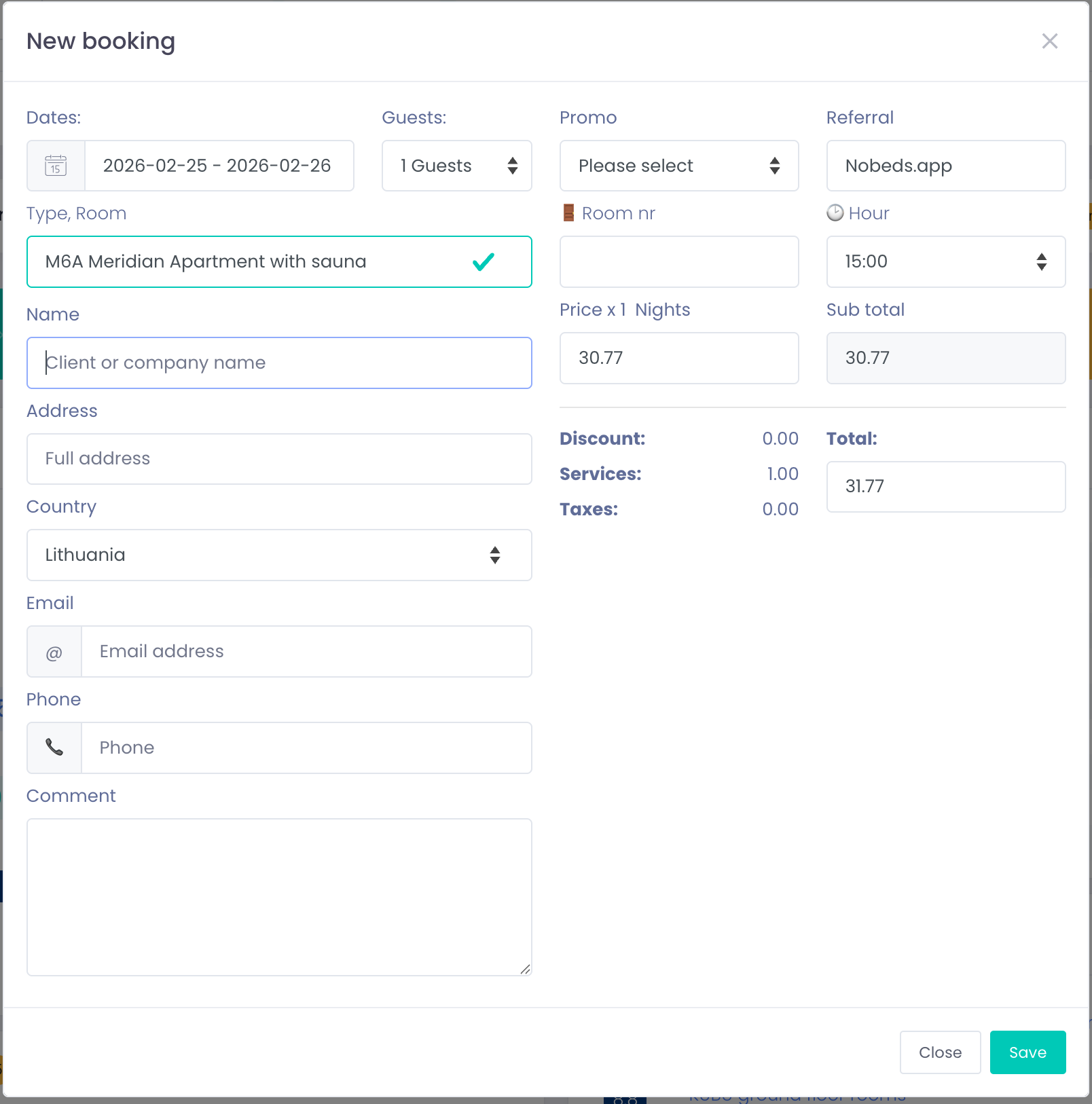
- The booking form will open.
Option 2 – Directly from the Calendar
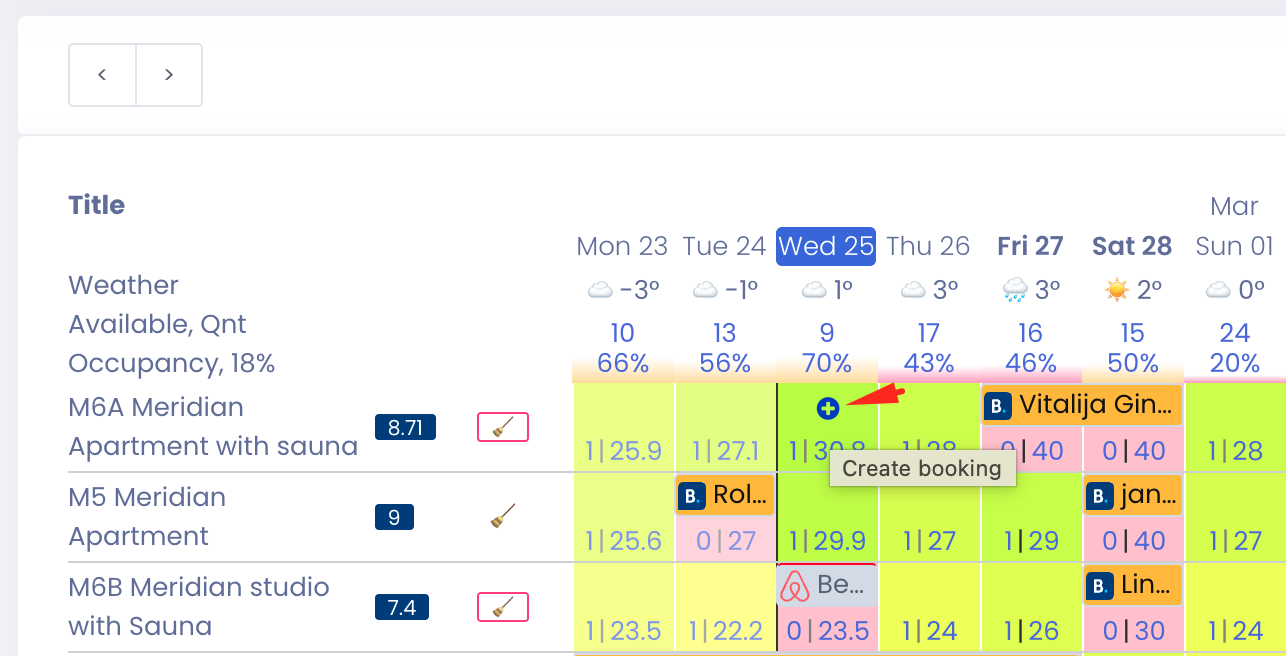
- Open the Calendar view.
- Navigate to the desired room and date.
- Click the “+” icon inside the availability cell.
- The booking form will open automatically with prefilled dates and room.
This is the fastest way to create a booking for a specific room and day.
Fill in the Booking Form
Complete the following sections:
Booking Details
- Dates – Select check-in and check-out.
- Guests – Choose number of guests.
- Promo – Optional discount selection.
- Referral – Booking source (e.g., Nobeds.app, Direct, etc.).
- Room – Select the room type.
- Room nr – Optional room number.
- Hour – Arrival time.
Client Information
- Name – Client or company name.
- Address – Full address.
- Country – Select country.
- Email – Guest email address.
- Phone – Contact number.
- Comment – Internal or guest-related notes.
Price & Calculation
- Price x Nights – Base price.
- Discount / Services / Taxes – Adjust if needed.
- Total – Final amount (calculated automatically).
When finished, click Save.
The booking will immediately block availability and appear in the calendar.
Important Notes
- Availability and rates must be set before creating a booking.
- Only rooms with availability greater than 0 will be shown in the selection list.
If a room is missing, please check inventory and pricing first.
Video Help
Watch Video