How to Delete a Booking and Re-Open Availability
Sometimes a booking must be removed — for example, when it was created by mistake, duplicated, used for testing, or cancelled outside the system. NOBEDS allows you to safely delete bookings and optionally reopen availability in your calendar.
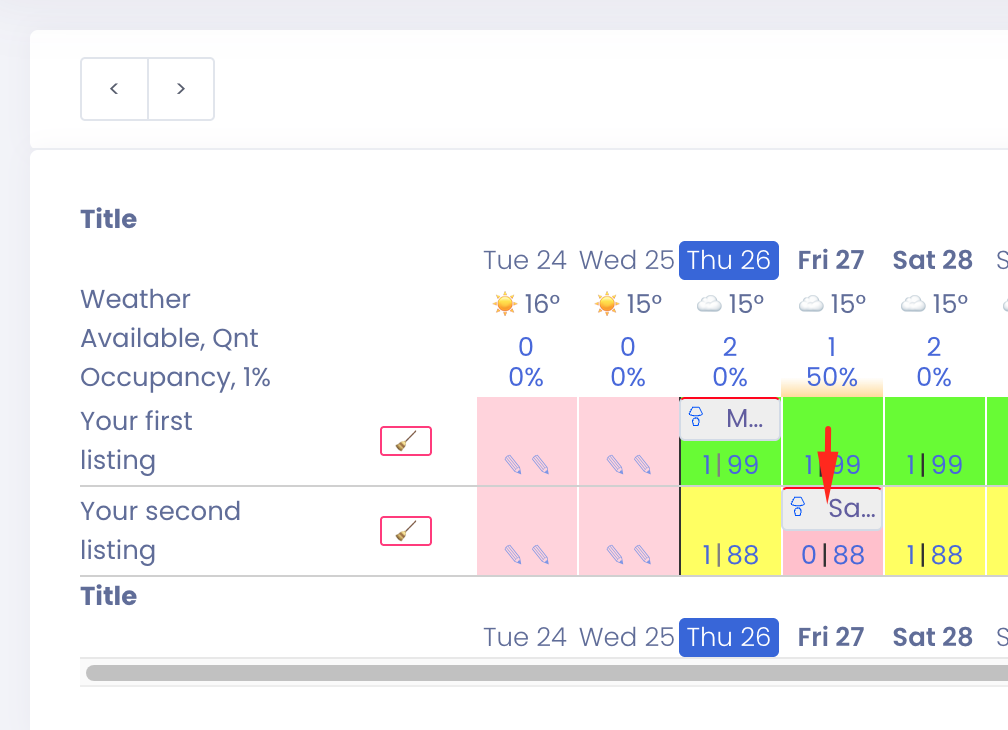
Step 1 — Open the booking from Calendar
Go to Calendar and click on the booking you want to remove. This will open the booking details window.
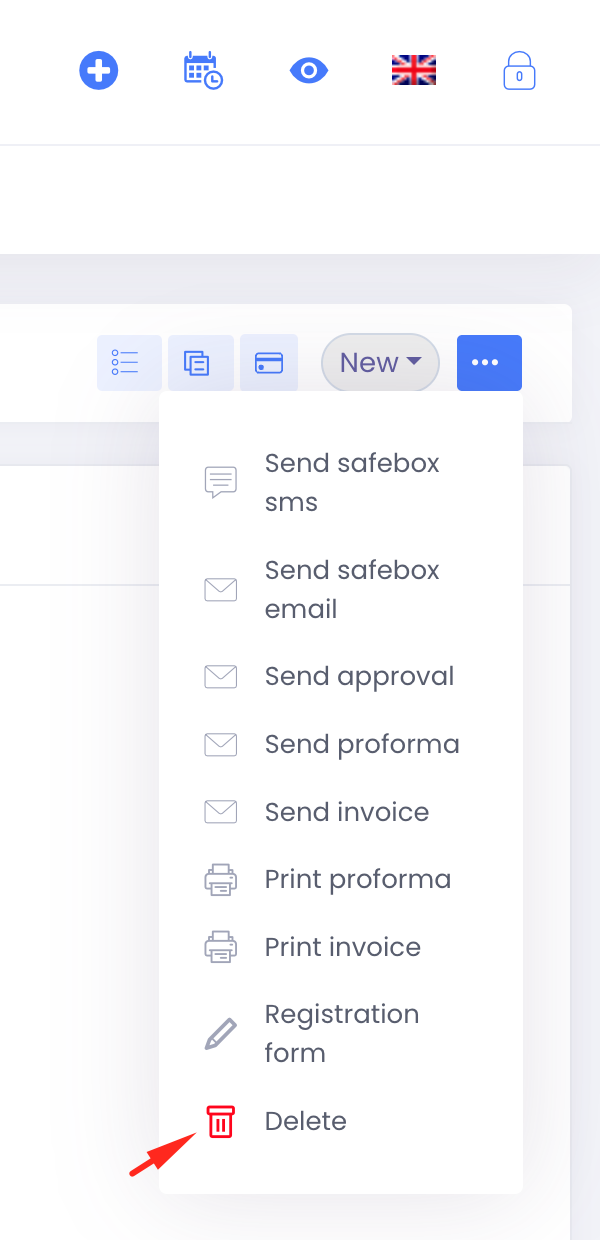
Step 2 — Open booking actions
Inside the booking window, click the ••• (More actions) button. From the dropdown menu select: ✅ Delete
Step 3 — Choose how the booking should be deleted
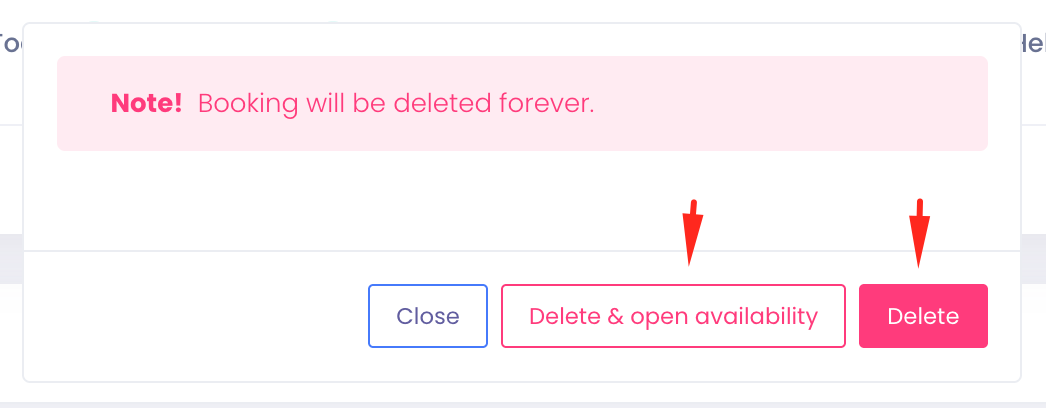
A confirmation window will appear with two different delete options.
Option 1 — Delete
Deletes the booking permanently without reopening availability. Use this when dates must remain blocked, room is unavailable for maintenance, you replaced booking manually, or availability should stay closed.
👉 Calendar dates will remain unavailable.
Option 2 — Delete & Open Availability
Deletes the booking and automatically reopens availability for the same dates. Use this when booking was created by mistake, duplicate reservation exists, guest cancelled, test booking was created, or you want to sell the room again.
👉 Dates immediately become available for new reservations.
⚠ Important Notes
Permanent action
Booking deletion is irreversible. Once deleted, booking data cannot be restored.
OTA bookings (Booking.com, Airbnb, etc.)
If the reservation came from an external channel: Deleting inside NOBEDS does NOT cancel the booking on Booking.com or Airbnb. Always cancel or modify the reservation first in the OTA extranet if required. Use deletion in NOBEDS mainly to correct calendar or remove duplicates. Otherwise, the channel may resend the reservation again during synchronization.
Recommended workflow
- •✅ Guest cancelled → Cancel in OTA → Delete & open availability in NOBEDS
- •✅ Manual mistake → Delete & open availability
- •✅ Internal block needed → Delete only
If you are unsure, choose Delete & open availability, otherwise the room may stay unintentionally closed and stop receiving bookings.