How to Link One Listing Availability With Other Listings
Renting a full House, Villa, and separate Rooms? If the whole property is booked, you need to automatically close the separate units. Here is how to link them.
The Linking Technique
Link one listing's availability with others using this fundamental technique: Export the main House/Villa availability and import it to the specific separate listings (Rooms/Apartments).
Vice Versa (Closing the Main Listing)
You can also do the opposite: If any separate room or apartment is booked, the whole house/villa should close. Simply export each unit's availability and import it into the House/Villa listing.
Important: Avoid Infinite Loops
Do not import listing A into listing B and simultaneously import listing B into listing A. This creates an infinite loop where both listings remain permanently closed. Only link in one direction per pair.
Step 1: Export Availability
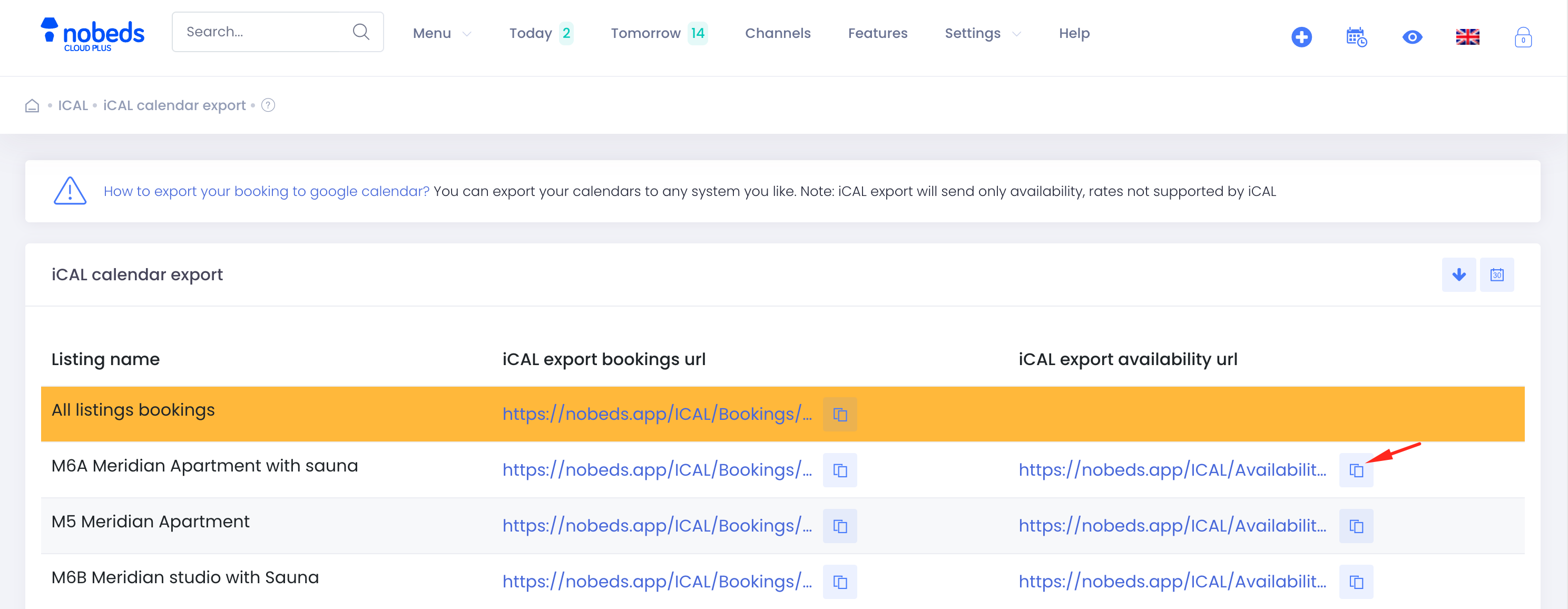
First, you need to get the availability export link for your main listing (e.g., the entire villa).
- 1Navigate to Menu > Channels in the top navigation bar.
- 2Go to the Export section and select "Availability".
- 3Find your main listing in the list and click the copy icon next to the "iCAL export availability url".
Step 2: Import via Matrix
Next, import that main listing's availability into the smaller units (e.g., separate rooms).
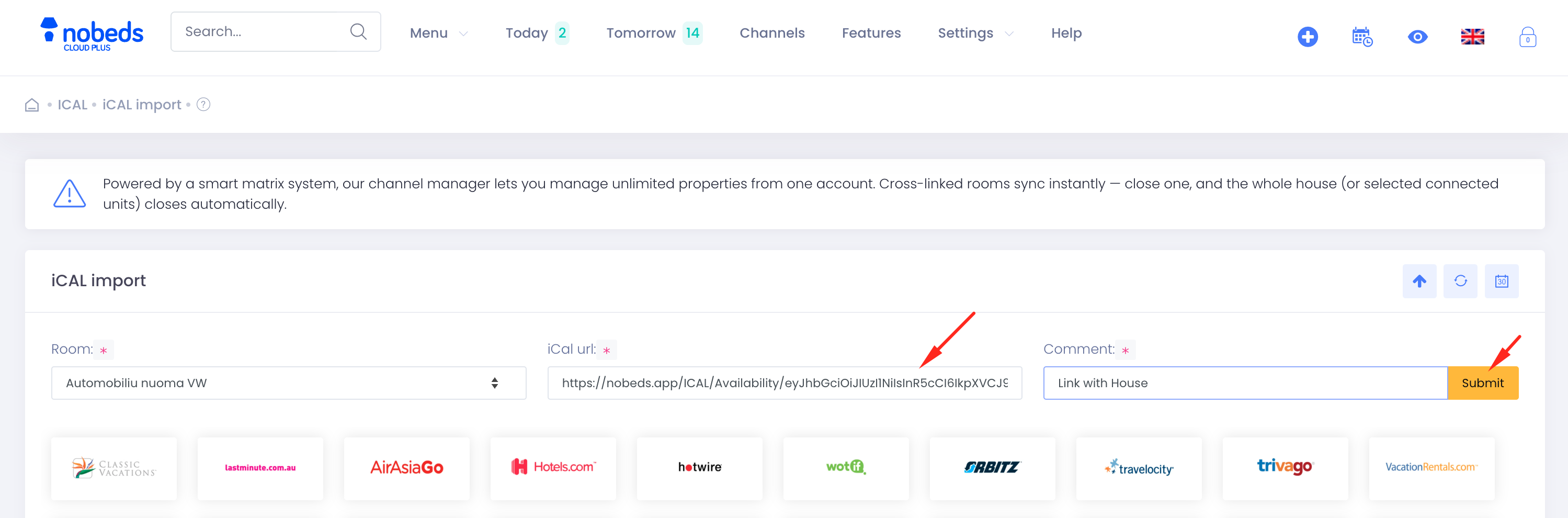
- 1Navigate to Menu > Channels > Import > Availability (via Matrix).
- 2In the "Room" dropdown, select the secondary unit (the separate room you want to block).
- 3Paste the copied URL into the "iCal url" field.
- 4Add a comment (e.g., "Link with House") and click "Submit".
Smart Matrix
Our channel manager lets you manage unlimited properties from one account. Cross-linked rooms sync instantly.
Pro Tip: Use this whenever you have a "Unit" that consists of multiple "Sub-units". This prevents double bookings across different listing types!