How to open room availability?
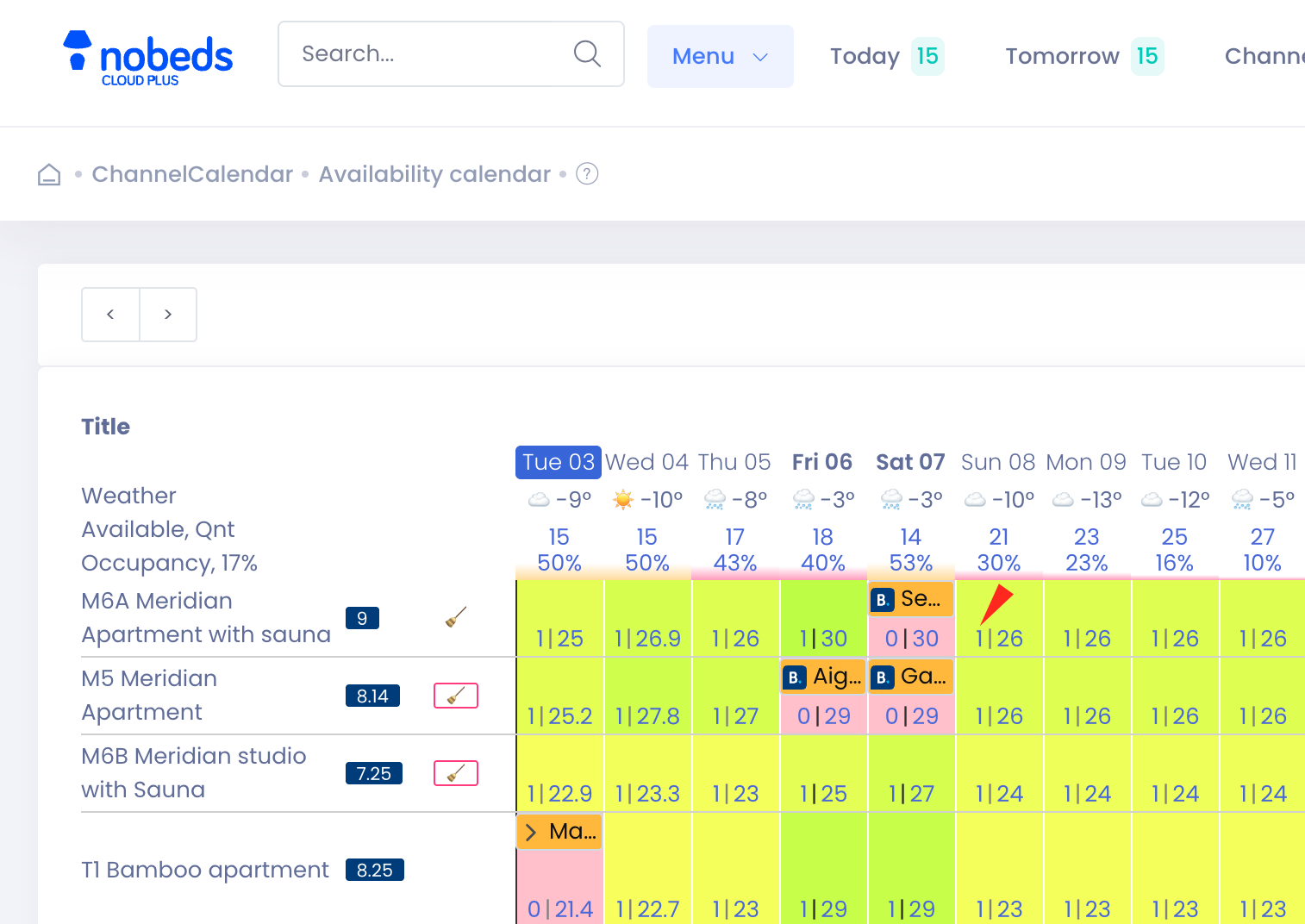
You can open the availability of any listing directly from the Availability Calendar.
1. Select the date range
Click on any day cell inside the availability calendar grid.
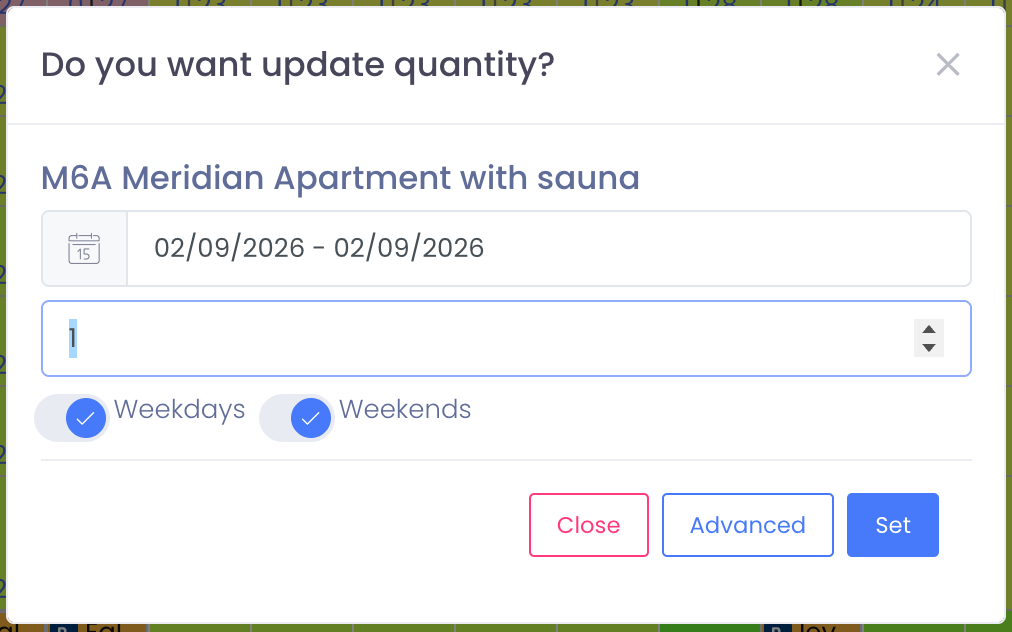
A popup window will open showing:
- the listing name
- the selected date or date range
From here, you can update the availability for the selected room.
2. Enter availability quantity
In the popup window:
- Adjust the date range if needed
- Enter the number of available units for this listing
- Choose whether the change applies to Weekdays, Weekends, or Both
- Click Set to save
The calendar will update instantly and availability will be synchronized across all connected channels.
3. Bulk editing availability
For longer periods or multiple listings, click Advanced.
The Bulk Inventory editor allows you to:
- Select multiple room types at once
- Apply rules for weekdays, weekends, or specific days of the week
- Set quantity, open, or close availability
- Update long date ranges with a single action
This is ideal for seasonal changes, renovations, or managing many apartments at once.
Notes
- If you manage multiple units of the same room type, set availability to 1, 2, 3, 4… Availability becomes sold out only when the value is 0.
- If you sell beds instead of full rooms, use the same method — just set the number of beds available.
- Virtual listings can be used to track guest placement or to manage non-bookable inventory.
- More details: (internal link remains unchanged)
Tips
- Quick changes → click directly on a day cell
- Long-term or multi-room updates → use Advanced (Bulk Edit)
- Availability updates are synchronized in real time with Booking.com, Airbnb, and all connected channels