How to set currency?
You can set your main currency for channels, invoices, and general system features in the Invoicing settings.
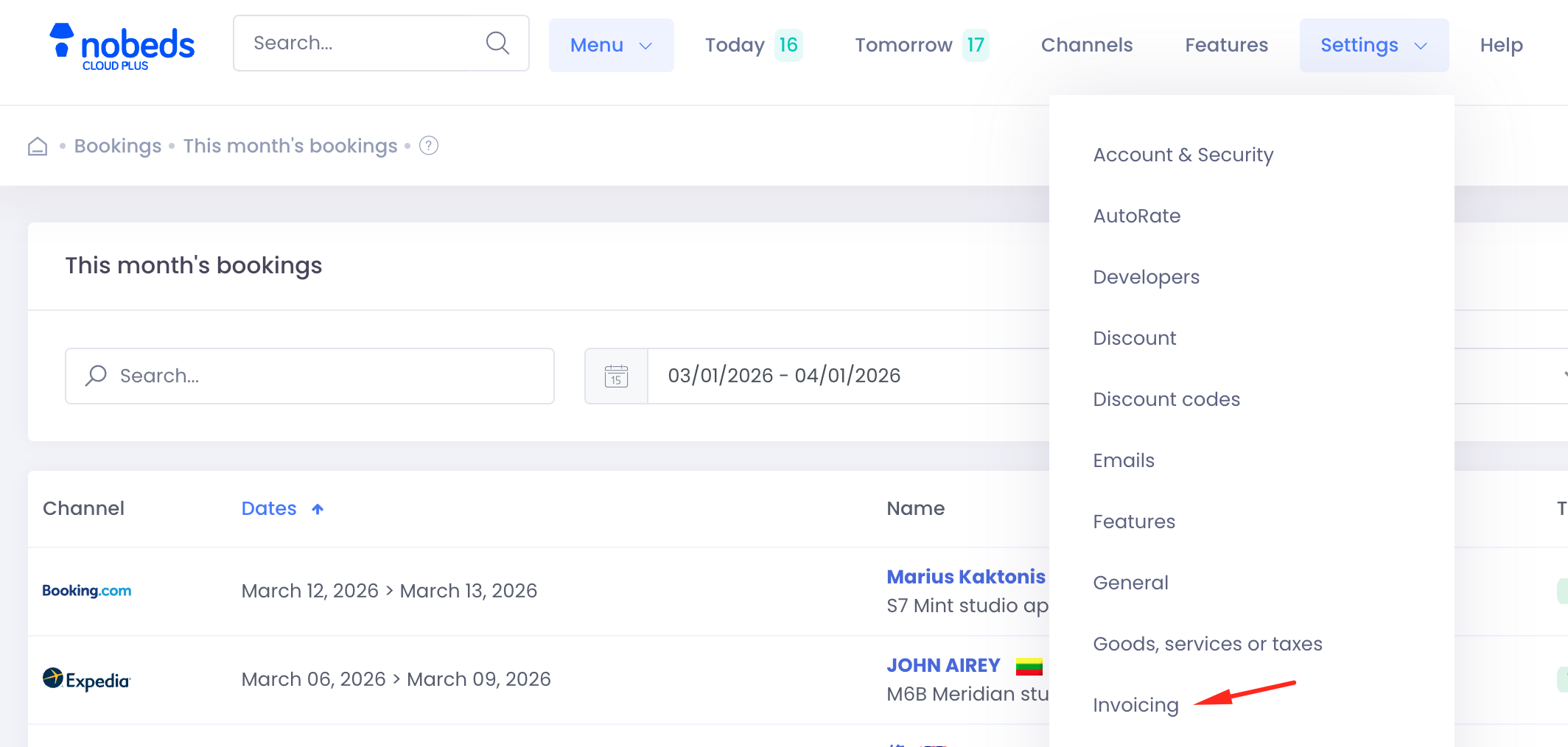
1. Navigate to Invoicing Settings
Click on 'Settings' in the top menu.
From the dropdown menu, select 'Invoicing'.
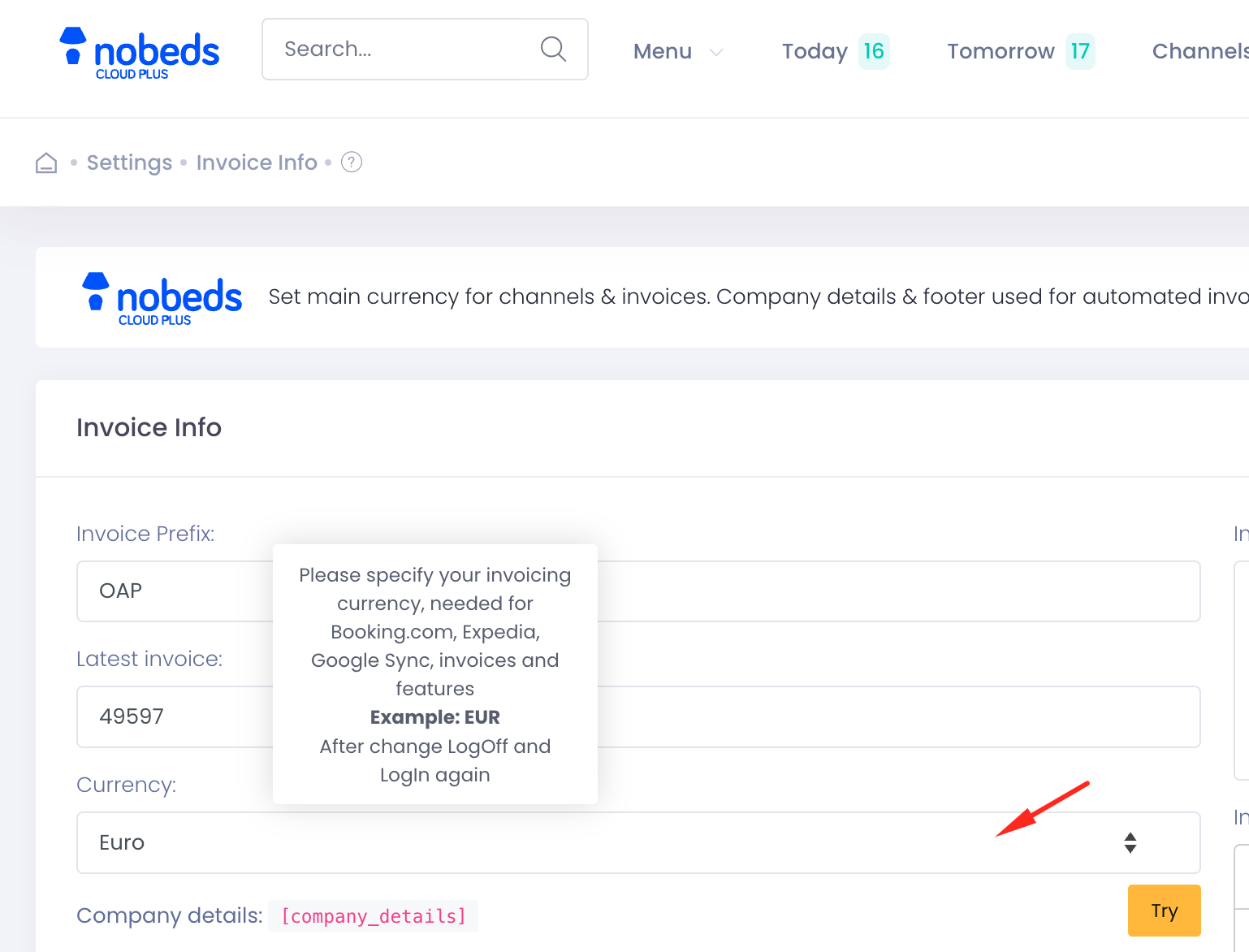
2. Select your currency
In the 'Invoice Info' section, look for the 'Currency' dropdown menu.
Select your preferred currency (e.g., Euro, Dollar, etc.).
Important: This currency will be used for Booking.com, Expedia, Google Sync, and all your invoices.
3. Restart the session
After changing the currency, you must Log Off and Log In again for the changes to take full effect across the system.
Notes
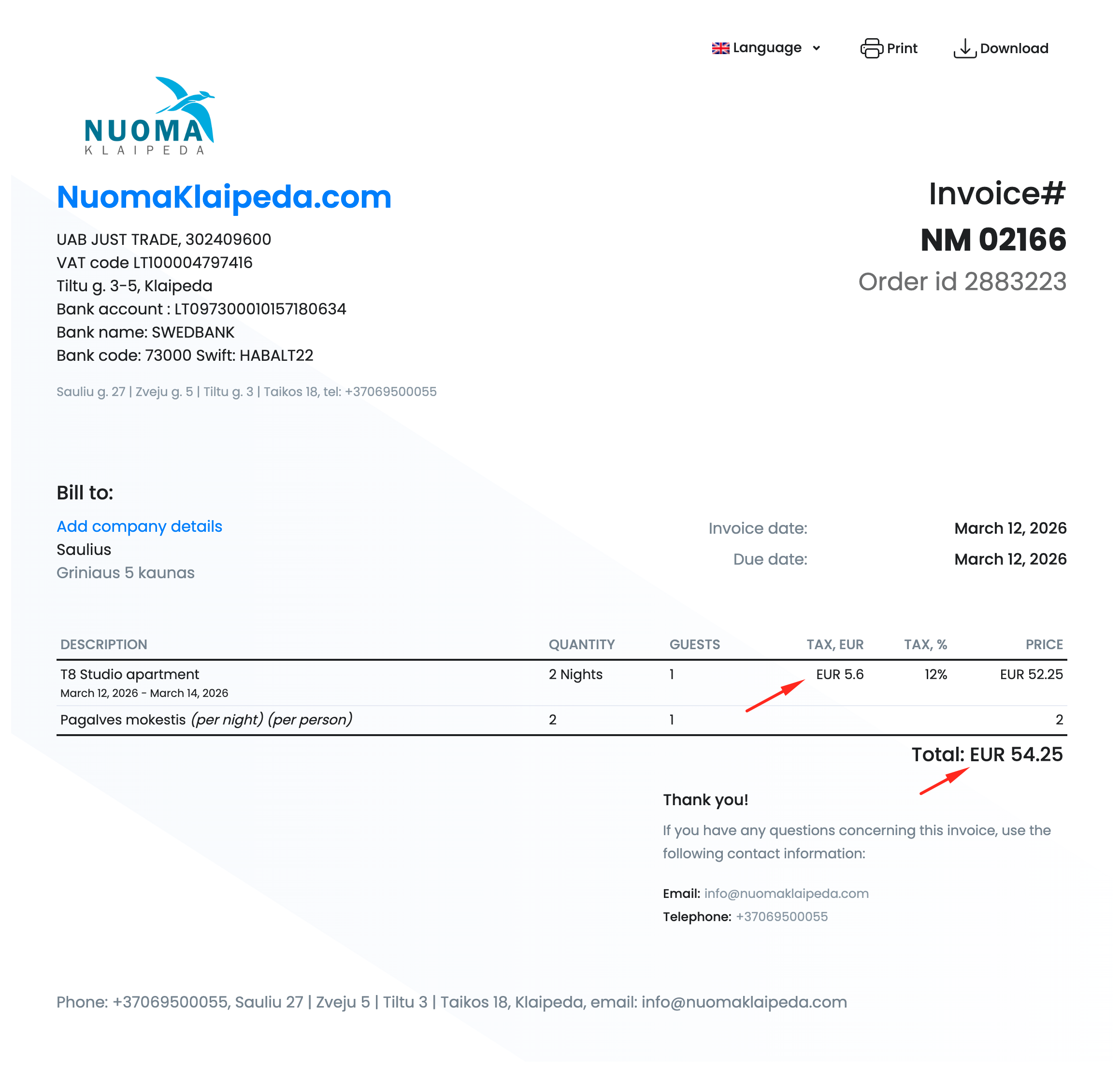
- The currency you set here will appear on all generated invoices.
- Ensure the currency matches your primary operating currency to avoid synchronization issues with OTAs.
- If you don't see your currency, contact support for assistance.
Tips
- Double-check your invoice prefix and latest invoice number while in the Invoicing settings.
- Remember to Log Out and back in to see the updated currency symbols in the calendar and reports.
Click to enlarge