How to set different rates for different number of guests
Follow these steps to set specific rates for rooms based on the number of occupants.
1Step 1 — Open Price Editor
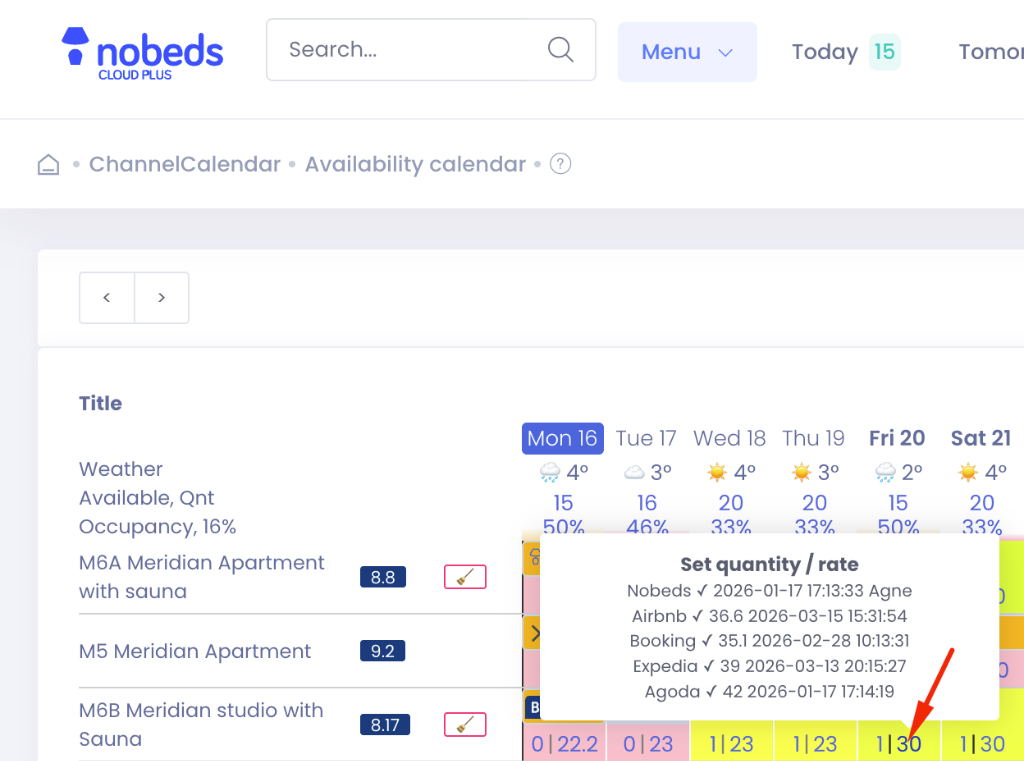
Navigate to your Availability Calendar and click on the price cell for the date and room you wish to edit.
Clicking directly on the price cell is the fastest way to start editing.
2Step 2 — Advanced Settings
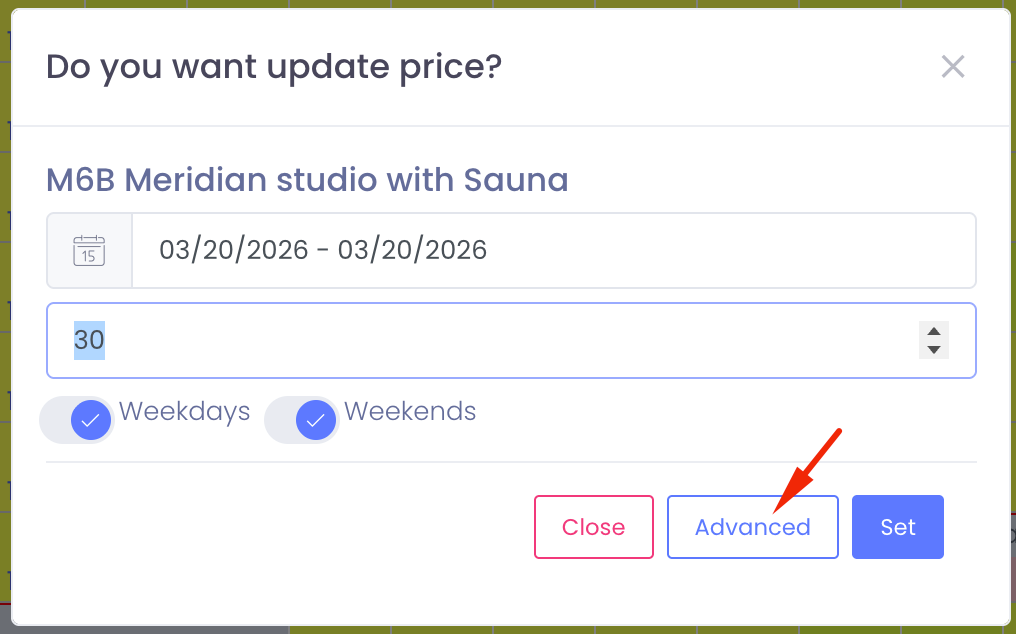
A popup will appear asking if you want to update the price. Click on the "Advanced" button to open the bulk inventory editor.
3Step 3 — Select Occupancy Option
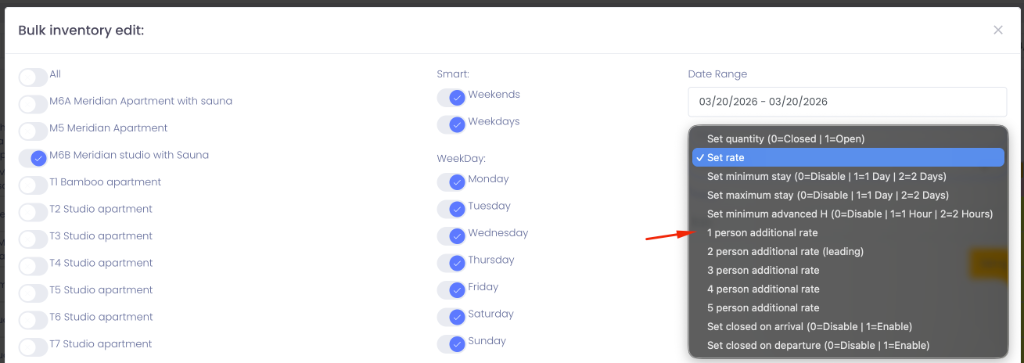
In the "Bulk inventory edit" window, locate the "Option" dropdown menu. Select the occupancy rate you want to set (e.g., "1 person additional rate" or "3 person additional rate").
4Step 4 — Set Value
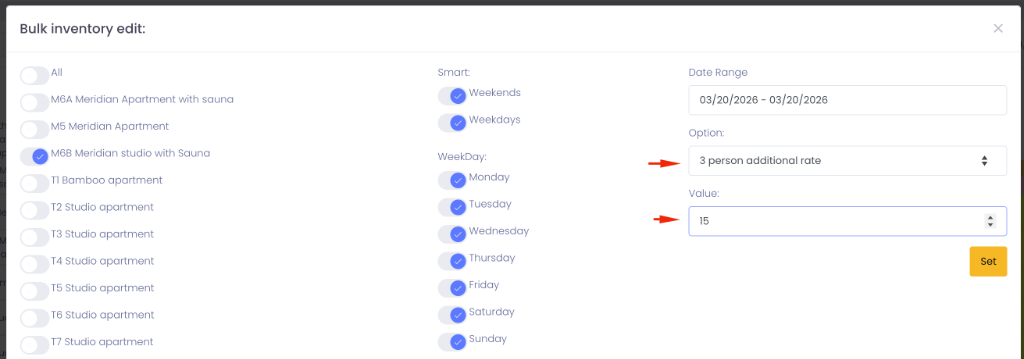
Enter the desired price in the "Value" field and click the orange "Set" button to save your changes.
NOTE: The Leading rate is usually for 2 guests and is fixed. If you want to set a lower price for 1 guest, enter a negative value (e.g., -5 EUR).
Pro Tip
You can use the Smart tags (Weekends/Weekdays) to apply these rates to multiple dates at once.