How to Set Rates?
You can change prices directly from the Availability calendar or by using the Bulk edit form.
1. Change rate for a specific day
To change the rate for a single day:
- Open Availability Calendar.
- Find the room and date you want to change.
- Click on the colored rate cell for that day.
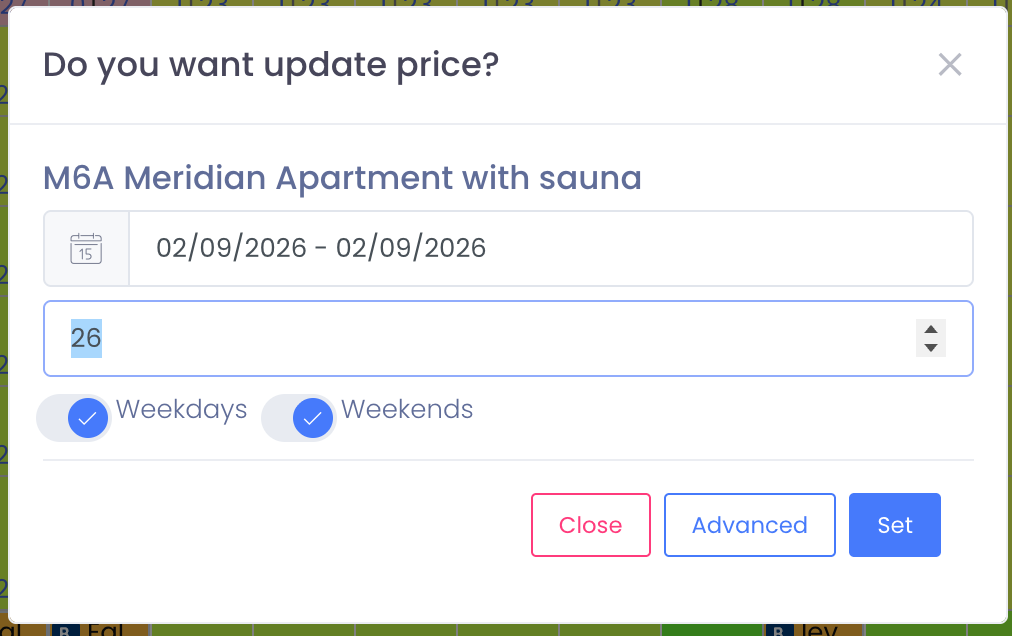
- In the popup window, enter the new price and optionally, the quantity of available rooms.
Click Set to save. The calendar will refresh and show the new rate and quantity.
2. Edit rates for several days (Weekdays / Weekends)
To edit rates for a period of time:
- In the calendar, click on the first day of the period you want to edit.
- In the “Do you want update price?” window, choose the date range (From – To), select whether to apply the change to Weekdays or Weekends, and enter the new price.
- Click Set.
The system will update all selected days with the same rate.
3. Bulk edit rates & availability (Advanced)
Use the Advanced / Bulk inventory edit form when you need to update many rooms and dates at once.
- Open the Bulk inventory edit form.
- On the left, select the rooms you want to update.
- On the right, set the Date Range, Option (e.g., Set rate or Set quantity), WeekDays, and Value.
- Click Set to apply the changes.
All selected rooms and days will be updated in one step.
Notes
- If you have several rooms of the same type, you can set Quantity to 2, 3, 4… The system will allow you to sell rooms until the quantity reaches 0.
- Changes in the Availability calendar automatically sync to connected channels (Booking.com, Airbnb, etc.) according to your Channel Manager settings.