How to connect Hostelworld to Channel Manager
Synchronize hostel beds, dorm availability, and rates with Hostelworld automatically.
About the Connection
The connection between NOBEDS and Hostelworld uses their secure XML API. You must activate NOBEDS as your provider in your Hostelworld extranet first, then map each rental type using the unique IDs provided by Hostelworld.
Step-by-Step Connection Instructions
1. Enable NOBEDS in Hostelworld Extranet
Log in to your Hostelworld Inbox (extranet). Navigate to Property Setup > Channel Manager. Select NOBEDS as your provider and click save. Hostelworld will authorize the connection and email your API connection details/password.
2. Go to Channels in NOBEDS
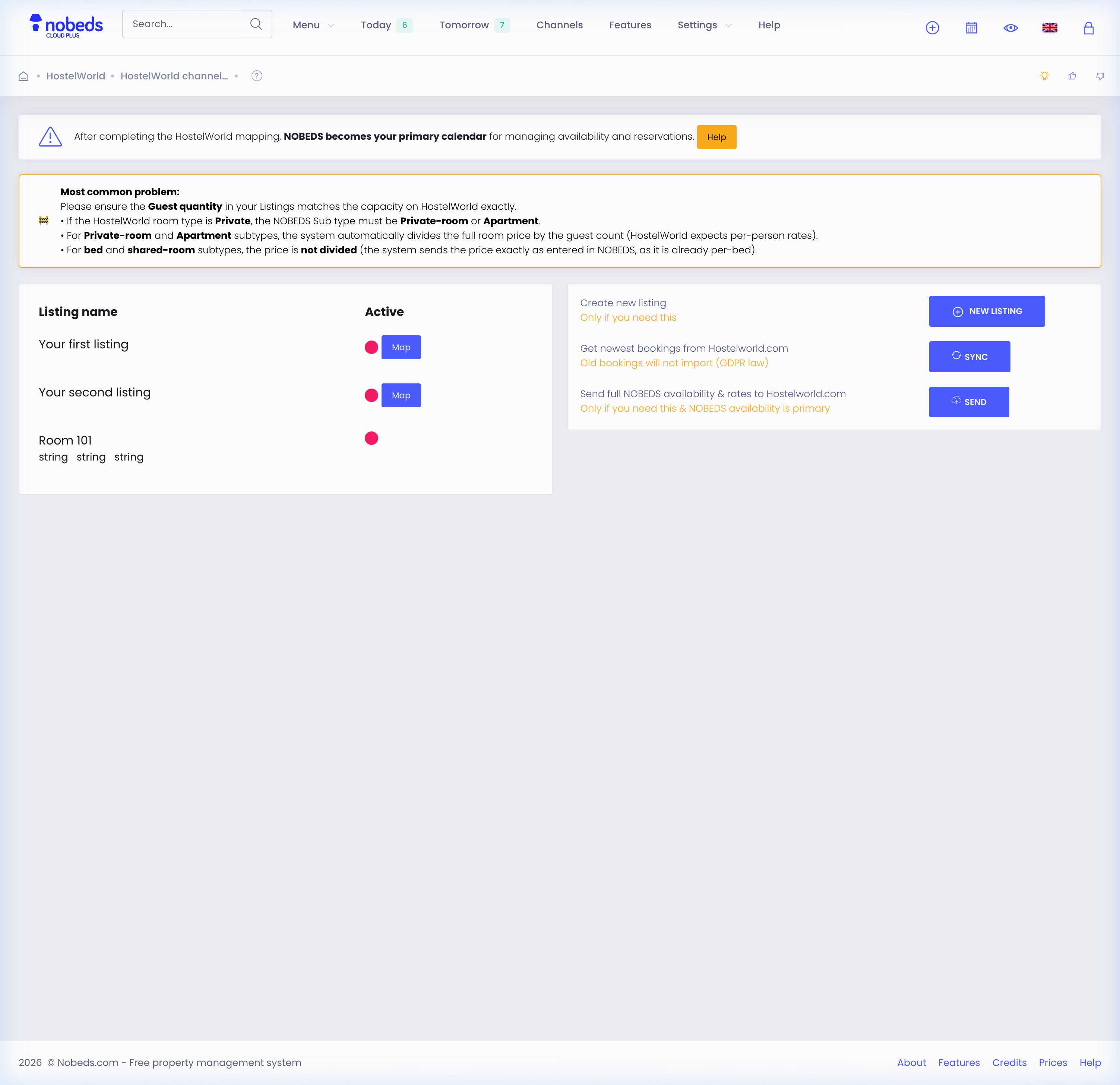
Log in to your NOBEDS account. From the main menu, navigate to the Channels page. Look for the Hostelworld card and click on it to open the connection management screen.
3. Map Your Room Types & Rates
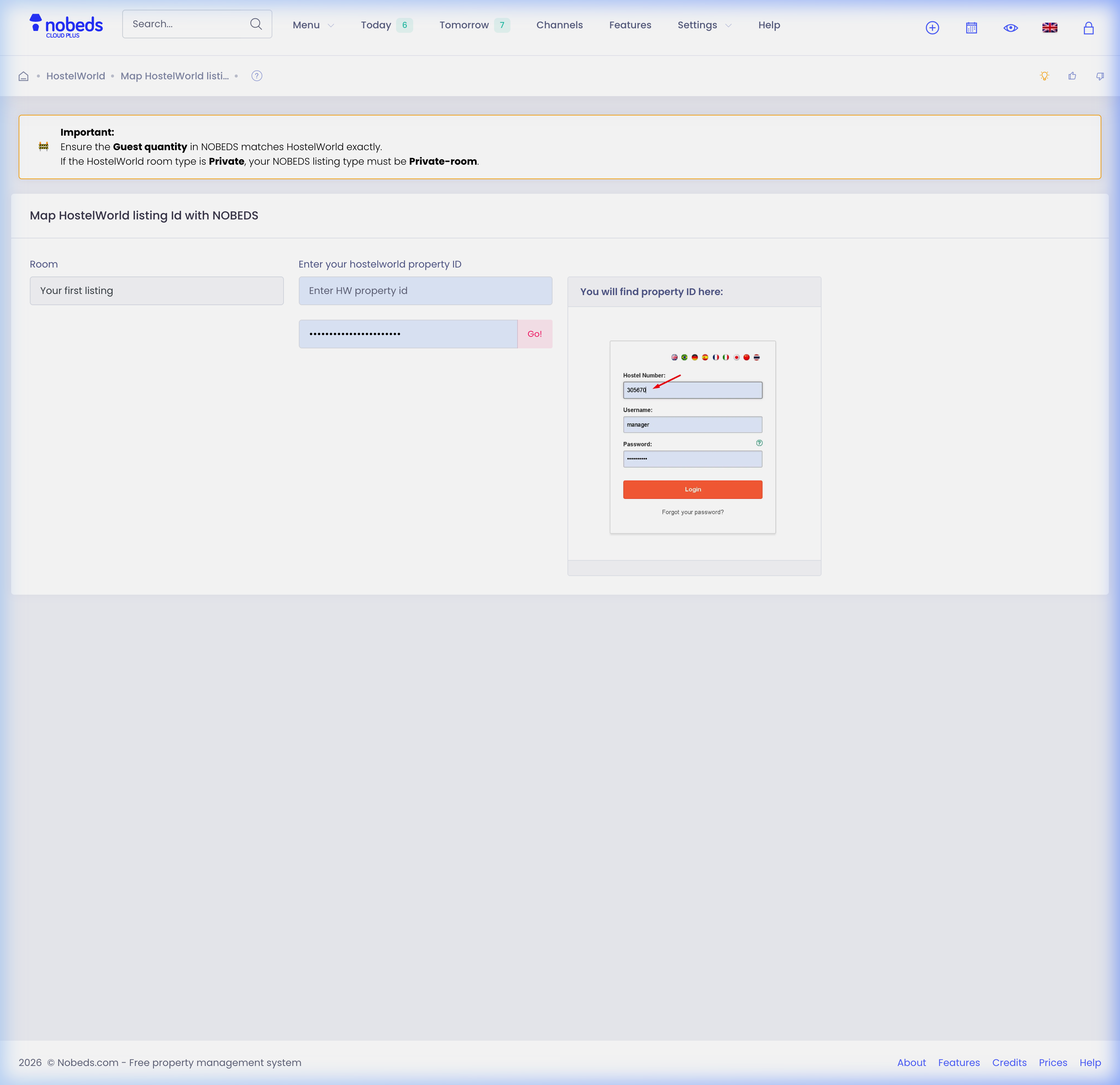
Click the Map button next to the rental type you want to link. Fill in the following connection parameters:
• Hostelworld Property ID (Your main hotel/property ID)
• Room Type ID (The specific ID for the room type on Hostelworld)
• Rate Plan ID (The specific rate plan ID you want to sync)
• API Connection Password (The password generated for XML connection)
Click Save to enable real-time two-way synchronization.
Sync & Support Info
Once mapped, NOBEDS automatically syncs availability, rates, and updates on every new reservation. If you encounter any mapping difficulties, feel free to contact us at support@nobeds.com.