How to Edit a Certain Booking
Learn how to edit guest details, stay dates, room assignments, and financial information for any reservation.
Editing a booking allows you to correct guest details, adjust stay dates, change room assignment, or update financial information such as price or payment status.
1) Open booking from Dashboard
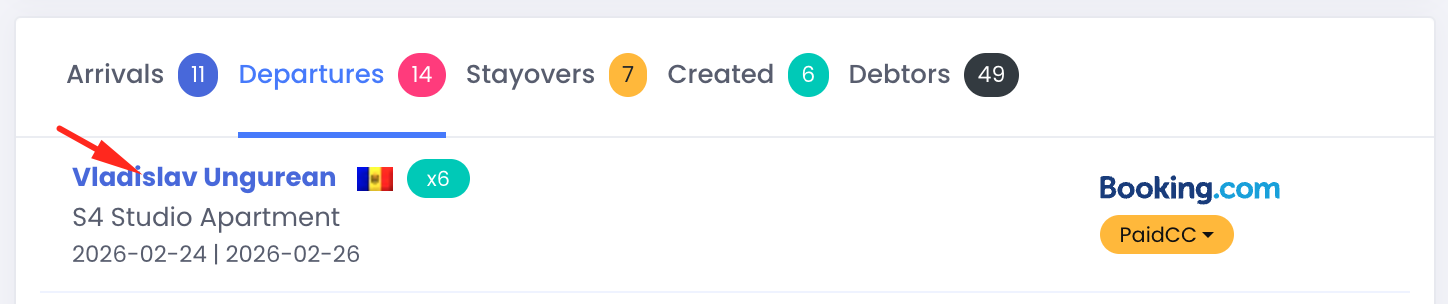
Go to Dashboard and select one of the operational lists:
- Arrivals
- Departures
- Stayovers
- Created
- Debtors
Find the guest booking and click on the reservation row.
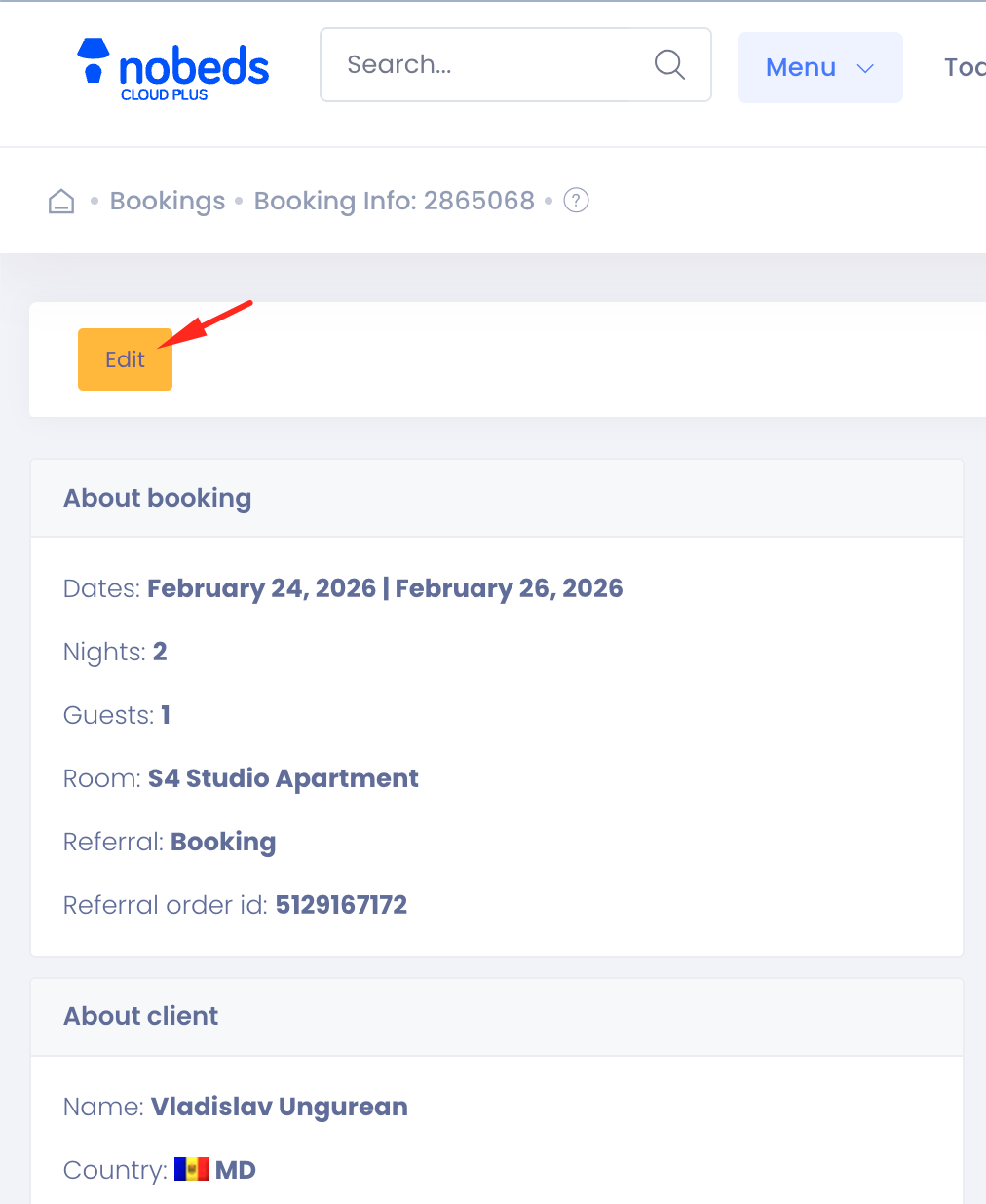
This opens the full Booking Info page where all reservation data is displayed.
Recommended when:
- Guest already arrived or arriving today
- You search booking quickly by guest name
- Daily operations management
2) Enter Edit mode
Inside the booking page, information is initially shown in read-only mode.
Click the Edit button to unlock booking fields.
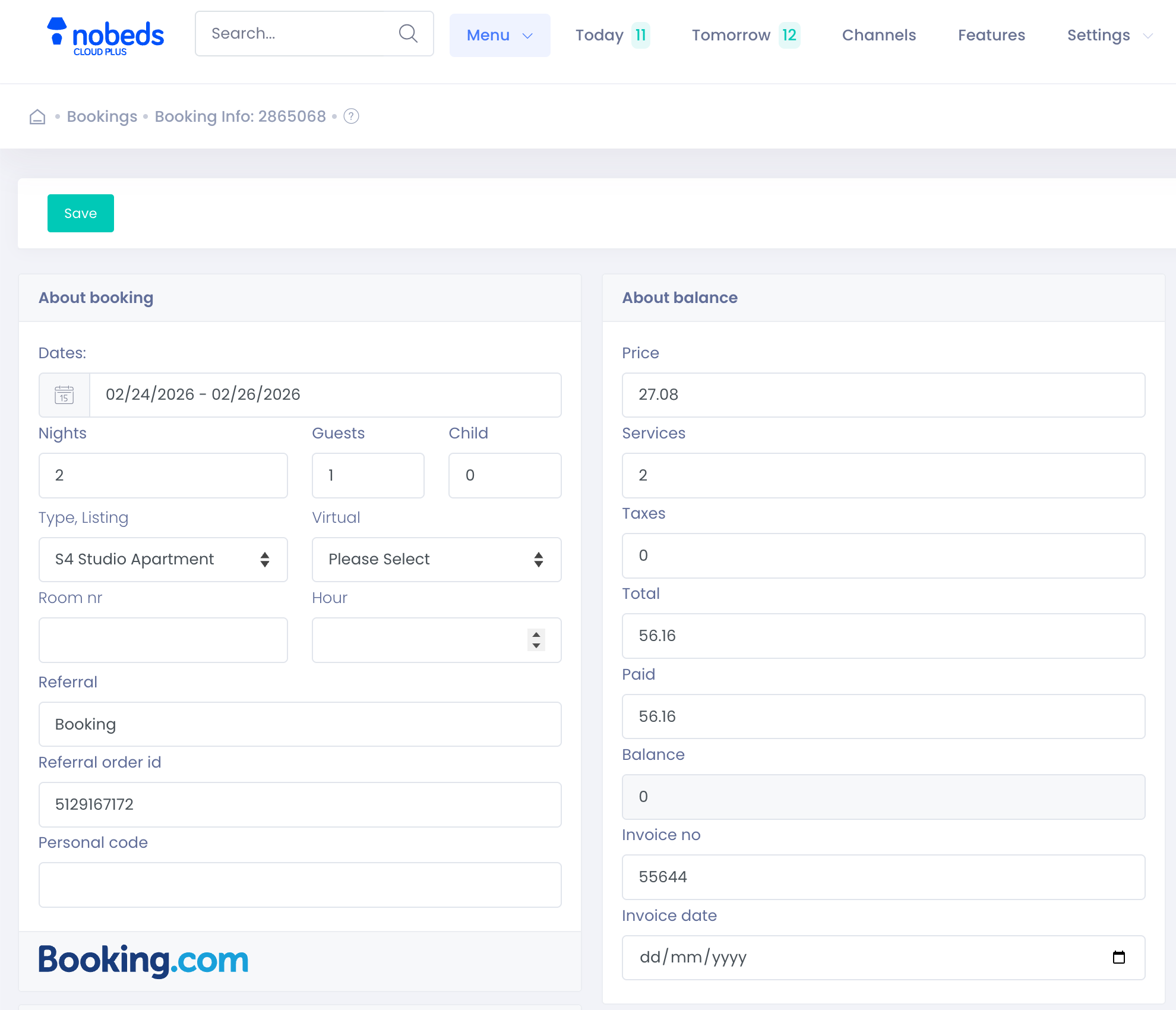
After clicking Edit, the system switches to editable form mode.
3) Modify booking information
Stay details
You may change:
- Check-in / Check-out dates
- Number of nights
- Guests / Children
- Assigned room or apartment
- Virtual room (if used)
Only rooms with available inventory will appear in selection.
Changing dates automatically recalculates availability validation.
Booking source information
Fields:
- Referral (Booking.com, Airbnb, Direct, etc.)
- Referral order ID
Used for:
- OTA tracking
- Synchronization reference
- Accounting audits
For OTA reservations, this value should normally remain unchanged.
Financial & balance section
You can adjust booking financials:
Typical use cases:
Invoice information can also be added:
- Invoice number
- Invoice date
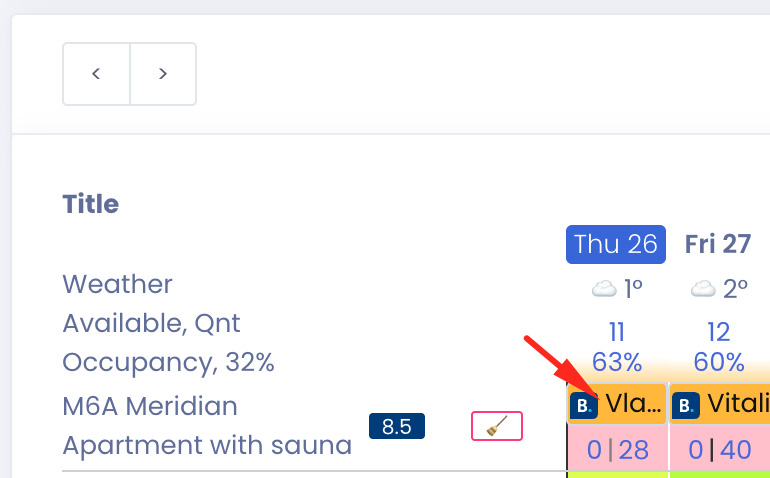
4) Edit booking directly from Calendar
A faster operational method:
- Open Calendar
- Locate booking bar
- Click reservation
- Booking window opens → Edit
Best for:
Important notes (OTA bookings)
- Guest data usually syncs from OTA
- Some fields cannot overwrite channel data
- Date or price edits may require confirmation on OTA side
- Availability always remains synchronized
NOBEDS updates internal management data but respects channel ownership rules.
Common scenarios
✔ Guest extends stay
→ Edit dates
✔ Room change required
→ Change Room
✔ Payment received at property
→ Update Paid amount
✔ Add extra service
→ Increase Services value
✔ Correct wrong price
→ Adjust Price manually
Best practice
Always verify after editing:
- Calendar availability
- Balance = correct amount
- Room assignment
- OTA synchronization status
This prevents overbookings and accounting mismatches.