How to Set Booking Restrictions
Control when and how guests can book your rooms across all connected channels.
Available restrictions in Nobeds
In the Nobeds system, restrictions allow you to control when and how guests can book your rooms across all connected channels (Booking.com, Airbnb, Expedia, etc.).
Restrictions are applied directly from the ChannelCalendar and are synchronized in real time to all supported platforms.
This page explains what restrictions are available, what they mean, and how to enable or disable them.
Where to manage restrictions
- Go to ChannelCalendar
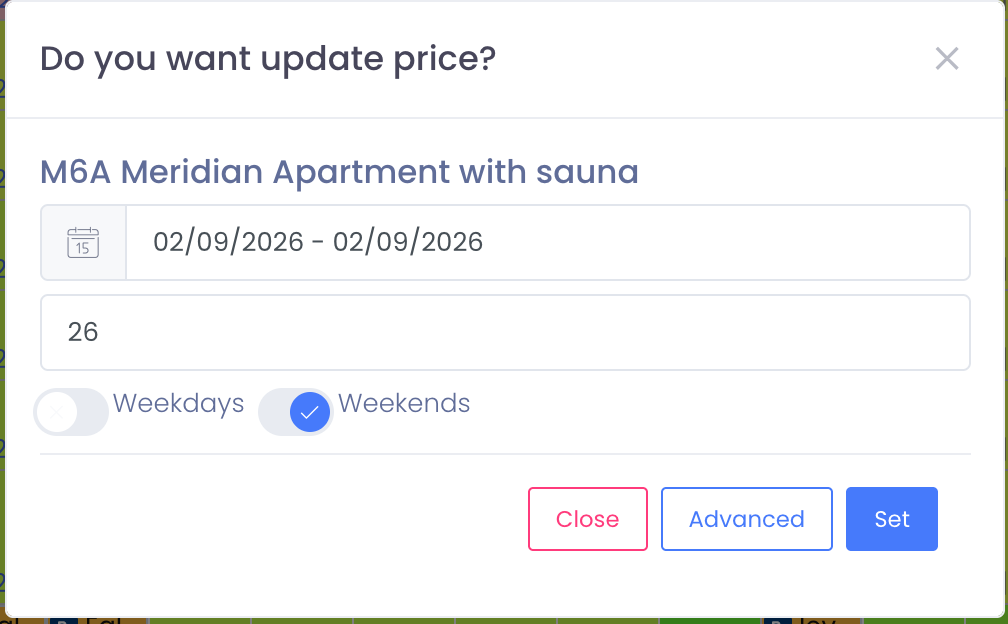
- Click on a date cell for the room you want to edit
- In the popup window, open the Option dropdown
- Select the restriction you want to apply
- Set the value and click Set
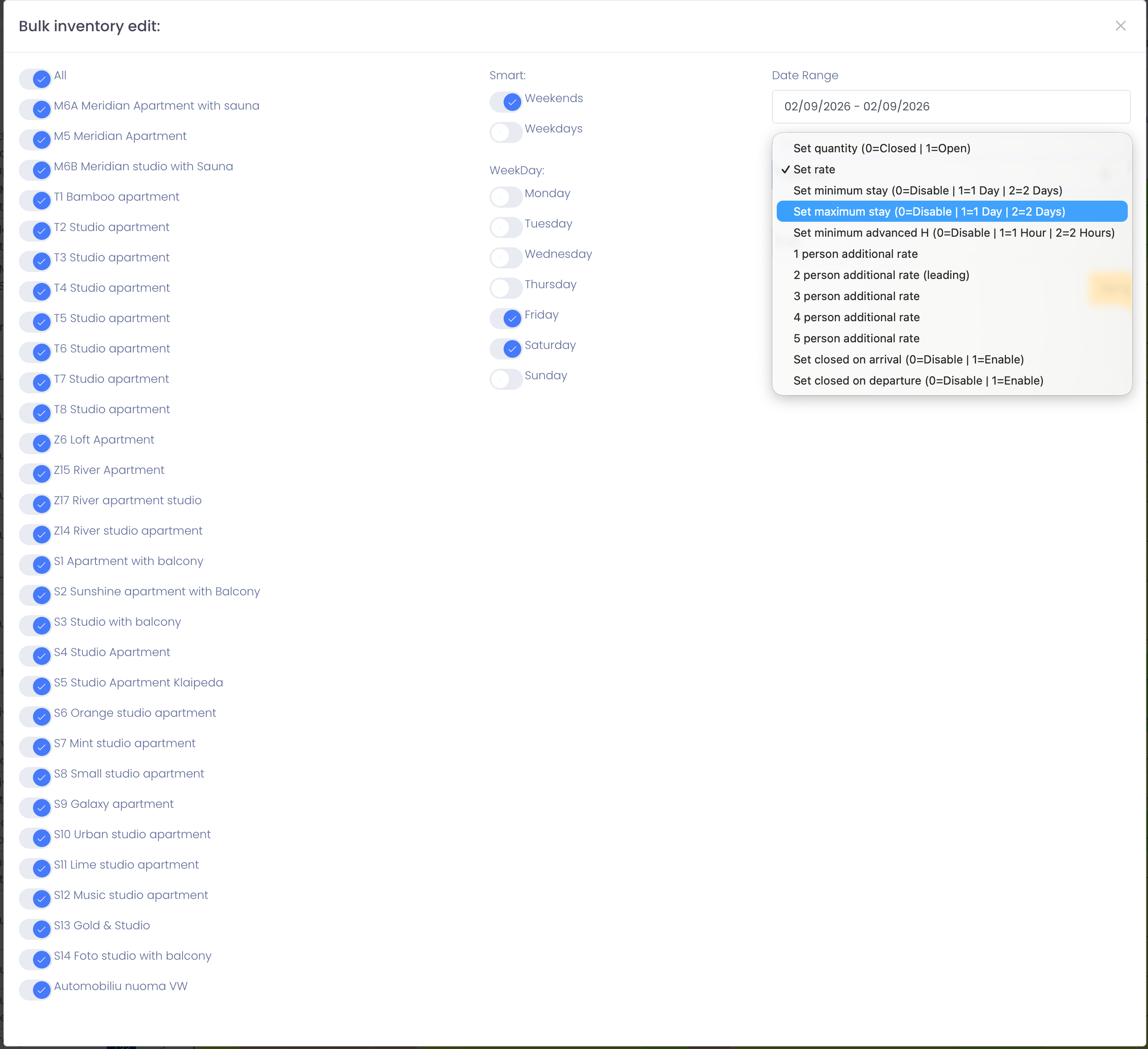
For longer periods or multiple rooms, use Advanced (Bulk Edit).
1. Set quantity (Open / Close)
Option: Set quantity (0 = Closed | 1 = Open)
Controls whether the room is bookable.
- 0 → Room is closed (not sellable)
- 1+ → Room is open (number = available units)
Use case:
- Close rooms for renovations
- Limit inventory manually
- Reopen rooms instantly
2. Set minimum stay
Option: Set minimum stay (0 = Disable | 1 = 1 Day | 2 = 2 Days)
Defines the minimum number of nights a guest must stay.
- 0 → No minimum stay
- 2 → Guests must book at least 2 nights
Use case:
- Avoid 1-night bookings on weekends
- Increase average booking value
- Control turnover and cleaning costs
3. Set maximum stay
Option: Set maximum stay (0 = Disable | 1 = 1 Day | 2 = 2 Days)
Limits how long a guest can stay.
- 0 → No limit
- 7 → Maximum stay of 7 nights
Use case:
- Prevent very long stays
- Keep availability flexible in high season
4. Set minimum advance (booking notice)
Option: Set minimum advanced H (0 = Disable | 1 = 1 Hour | 2 = 2 Hours)
Defines how long before arrival a booking is allowed.
- 0 → Same-day / last-minute bookings allowed
- 24 → Booking must be made at least 24 hours in advance
Use case:
- Avoid last-minute check-ins
- Give staff time to prepare rooms
5. Closed on arrival (CTA)
Option: Set closed on arrival (0 = Disable | 1 = Enable)
Prevents guests from starting a stay on selected dates.
- Enabled → Check-in not allowed on that date
- Guests may still stay over if arrival is earlier
Use case:
- Block check-ins on busy days
- Control arrival flow
6. Closed on departure (CTD)
Option: Set closed on departure (0 = Disable | 1 = Enable)
Prevents guests from checking out on selected dates.
Use case:
- Prevent same-day turnover
- Enforce fixed stay patterns
7. Additional person rates
Options:
- 1 person additional rate
- 2 person additional rate (leading)
- 3 person additional rate
- 4 person additional rate
Defines extra charges per additional guest.
Use case:
- Flexible pricing by occupancy
- Increase revenue for larger groups
Bulk restrictions (Advanced)
Use Advanced (Bulk Edit) to apply restrictions efficiently.
You can:
- Select multiple room types
- Choose weekdays, weekends, or specific days
- Apply restrictions to long date ranges
- Combine price + availability + restrictions in one action
Perfect for:
- Seasonal rules
- Events
- Hotel-wide changes
Notes
- Restrictions are synced in real time to all connected channels
- Channel limitations may apply (some OTAs interpret rules differently)
- Always review the calendar after saving changes
Tips
- Single day change → click the calendar cell
- Multiple rooms or dates → use Advanced
- Combine minimum stay + weekend pricing for best results
- Use Closed on Arrival instead of full closure when possible