How to install Progressive Web App (PWA) on Mobile or Desktop?
Access your NOBEDS dashboard instantly on any device with a native app-like experience and offline capabilities by installing our Progressive Web App (PWA).
Android Installation Steps (Google Chrome)
- Open your Google Chrome browser and navigate to
https://nobeds.app. - Wait for the Add NOBEDS to Home screen banner to automatically pop up at the bottom of the screen, then tap it.
- If the pop-up does not appear:
- Tap the Menu icon (three vertical dots) in the upper-right corner of the Chrome browser.
- Select Install app (or Add to Home screen).
- Tap Install in the confirmation prompt.
- The NOBEDS icon will now be placed on your home screen and in your app drawer.
iOS Installation Steps (Safari on iPhone & iPad)
- Open the Safari browser on your iOS device and go to
https://nobeds.app. - Tap the Share button (the square icon with an arrow pointing upwards) in Safari's bottom toolbar.
- Scroll down the menu options and select Add to Home Screen.
- Give the app a name (e.g. "NOBEDS") and tap Add in the top-right corner.
- The NOBEDS launcher will appear on your device home screen.
Desktop Installation Steps (Chrome / Edge)
- Open your Google Chrome browser on your desktop and navigate to the NOBEDS portal.
- In the right side of the address bar, look for the Install App icon (monitor icon with a down arrow).
- Click the icon and select Install in the confirmation pop-up.
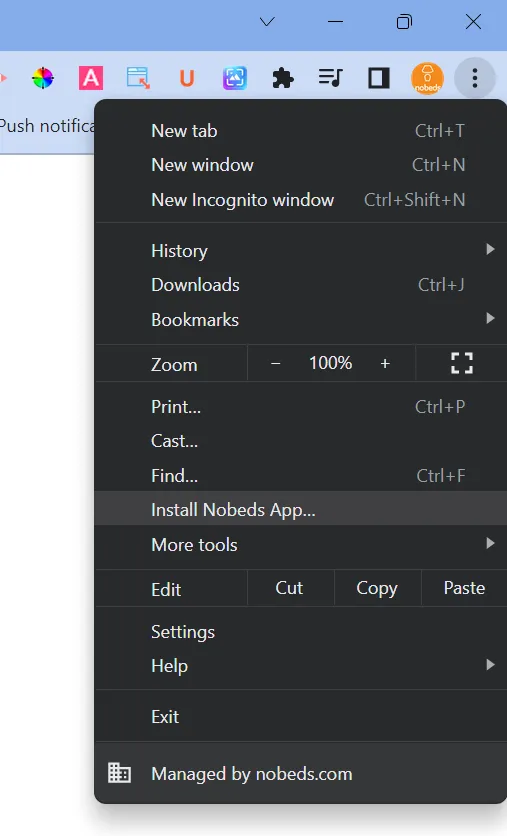
- Alternatively, click the three vertical dots menu in the browser toolbar and select Install Nobeds App...
- The application will be added to your desktop and taskbar as a standalone app.
We are using the latest progressive web app technology to ensure full compatibility, fast load times, and an offline-capable dashboard interface across all mobile and desktop platforms.