How to set rights and permissions for a manager?
Control your team member access levels, restrict viewing sensitive financial data, and define specific operational roles.
Step-by-Step Instructions
- Navigate to the Settings menu from the top navigation header and click on the Managers tab.
- You will see a list of registered manager profiles (receptionists, administrators, staff). Locate the row of the manager whose permissions you want to modify.
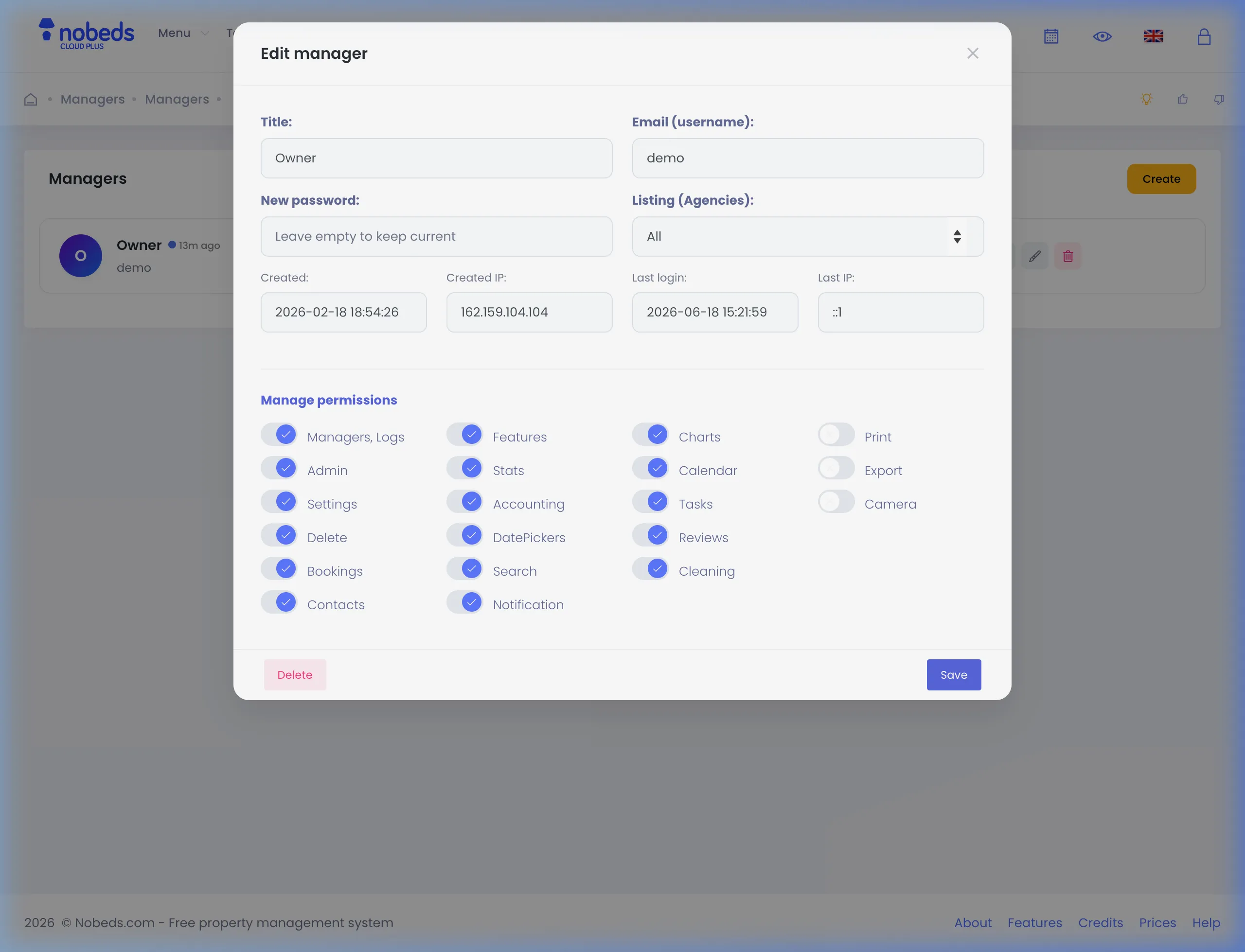
- Click on the manager's row to open the Edit Manager details modal.
- Scroll down to the Manage permissions section where you can toggle specific checkboxes:
• Settings - access to configuration.
• Managers & Logs - add/edit managers and check audit files.
• Bookings - manage reservations.
• CC, Print, Export, Camera - subscriber-only permissions to view card data, print invoices, export reports, and capture photos. - If you want to restrict the manager's view to only a specific property or channel listing, choose it from the Listing (Agencies) dropdown menu.
- Ensure everything looks correct, then click the blue Save button in the bottom-right corner of the modal to apply the permissions.
- Ask the manager to log off and log in again so the system updates the new permissions in their current session.